Purpose
Captionator permissions control who can see organization resources and who can perform sensitive actions such as managing settings, creating libraries, uploading media, editing media details, sharing libraries, using API keys, and moving work across departments.
Use this guide when you need to:
- Choose between Simple roles and Granular access.
- Understand what Owners, Admins, Managers, Members, and Viewers can do.
- Restrict departments or libraries to specific users or saved access groups.
- Create saved access groups for clients, departments, reviewers, or contractors.
- Create custom roles for a team, client, or contractor.
- Grant a user or access group access to one organization, department, or library scope.
- Understand why a button, tab, library, or action is hidden or disabled.
- Plan safe API key and external tool access.
Who Can Manage Permissions
You need organization settings permission to change the permission model, default access policies, access groups, custom roles, or resource grants.
Owners and Admins always keep global organization access. This protects existing organizations during rollout and prevents an Owner or Admin from accidentally locking themselves out while testing Granular access.
Managers, Members, Viewers, and custom-granted users receive access from the selected permission model plus any direct or access-group resource grants that apply to them.
Permission Models
Captionator has two permission models:
| Model | Best for | How access works |
|---|---|---|
| Simple roles | Small teams, early setups, teams that want predictable defaults | Each organization role has a built-in permission set. Departments and libraries are open to members according to those role permissions. |
| Granular access | Agencies, client-separated teams, restricted projects, contractor workflows | Owners and Admins keep full access. Other users need their role permissions plus access to the organization, department, or library scope. Restricted resources require an explicit direct user or access group grant. |
Simple roles are the safest starting point when you do not need strict separation between departments or libraries.
Granular access is the right model when one team member should be able to work in one library but not browse another, or when outside contributors should only see a narrow project area.
Choose A Permission Model During Setup
New organizations choose a permission model in the first-access setup wizard.
- Open the app as an Owner or Admin.
- When the setup wizard opens, go to the Permissions step.
- Choose Simple roles or Granular access.
- If you choose Granular access, choose the default access policy for new departments and new libraries.
- Continue through the wizard and select Complete Setup on the review step.
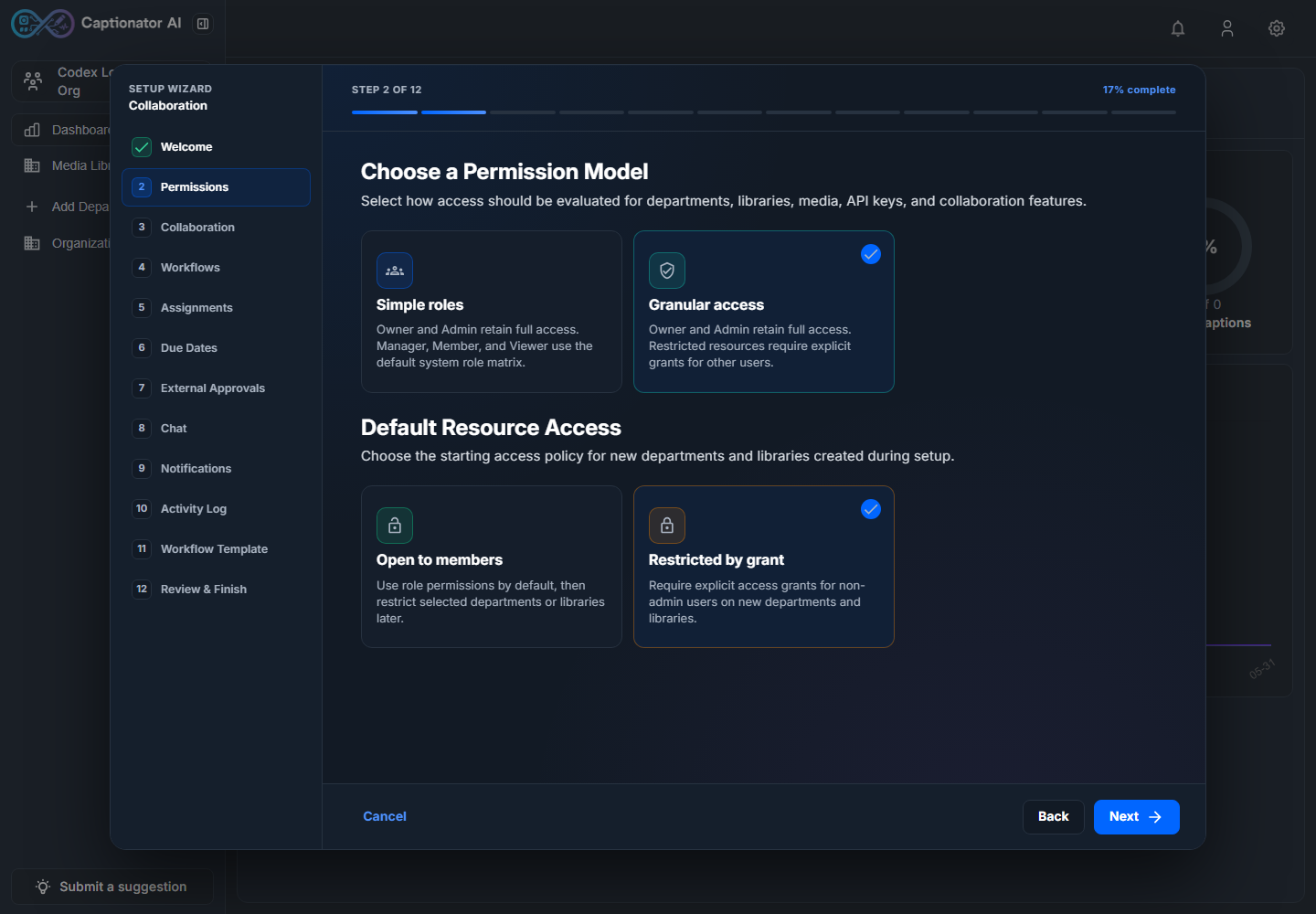
Screenshot: setup wizard permissions step with Simple roles and Granular access options.
The wizard saves the permission model when setup is completed. If you cancel the wizard, the model is not finalized and you can run setup again later.
Change Permissions Later
After setup, Owners and Admins can change permissions from Organization Settings.
- Open the app.
- Select Organization in the left navigation.
- Select Security.
- Choose a permission model.
- If Granular access is selected, choose default access for new departments and libraries.
- Create access groups for repeated user sets, then create custom roles for reusable permission bundles.
- Create department or library access grants for the user or access group that needs the scope.
- Select Save Security.
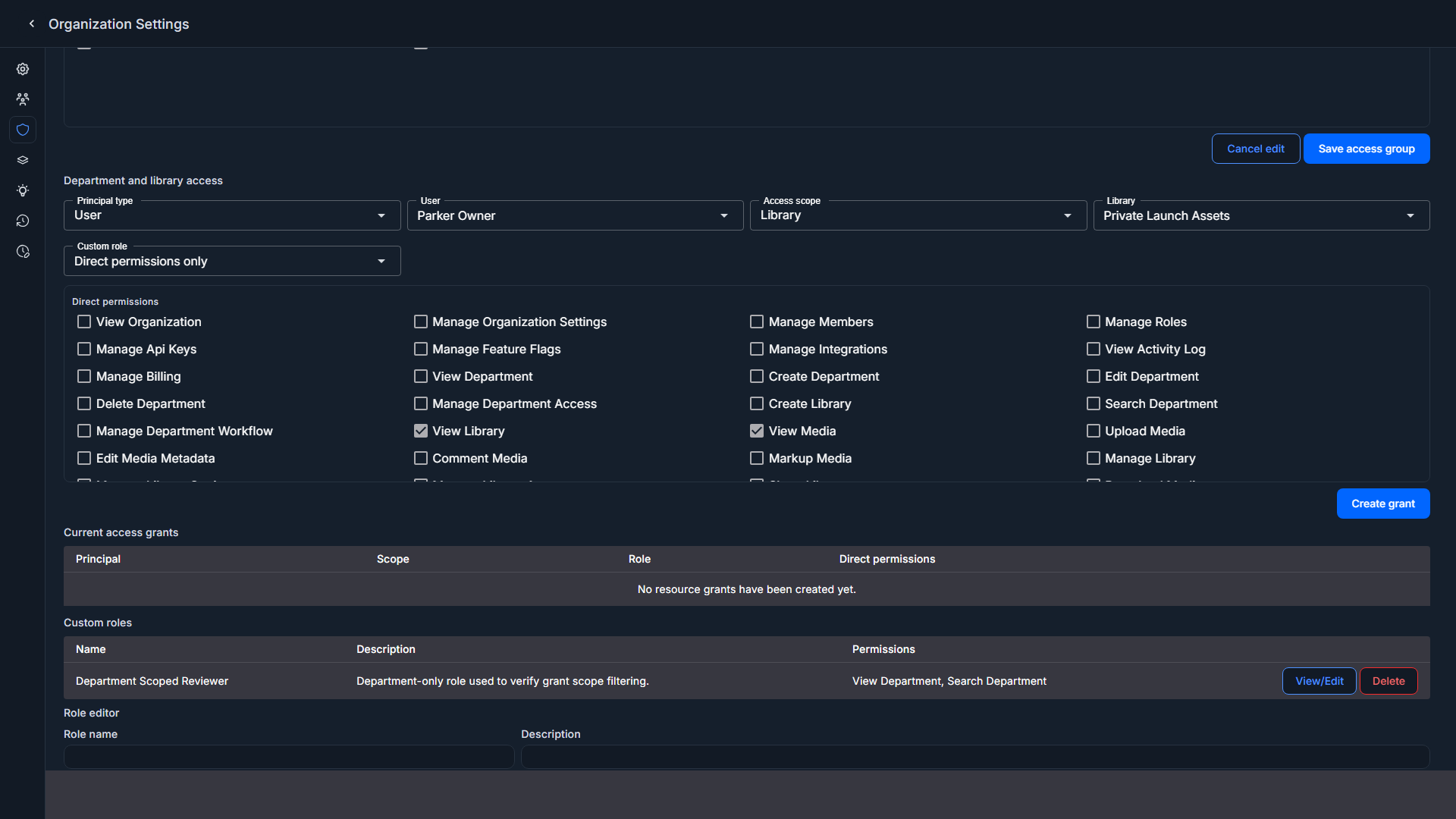
Screenshot: granular Security tab with system role permissions, access groups, and department/library access controls.
Changing the model or grants updates the organization permission policy version. Captionator uses that version when filtering libraries, departments, media, and search cache entries so stale permission decisions do not leak between users or between policy changes.
Security Screen Reference
The Security tab is the control center for organization permissions.
The top of the screen contains the permission model selector:
- Simple roles keeps access based on the built-in organization role matrix.
- Granular access adds access groups plus resource policy and grant checks for departments and libraries.
When Granular access is active, the top of the screen also shows default resource access selectors:
- New department access controls the starting policy for departments created after the setting is saved.
- New library access controls the starting policy for libraries created after the setting is saved.
The System role permissions table shows the active permission set for Owner, Admin, Manager, Member, and Viewer. Owners and Admins always have every permission. Managers, Members, and Viewers can be customized with the role permission editor and reset to their defaults later.
The fullscreen Organization Settings dialog keeps the Security tab in an internal scroll area, so long permission grids remain reachable without clipping the bottom of the browser window.
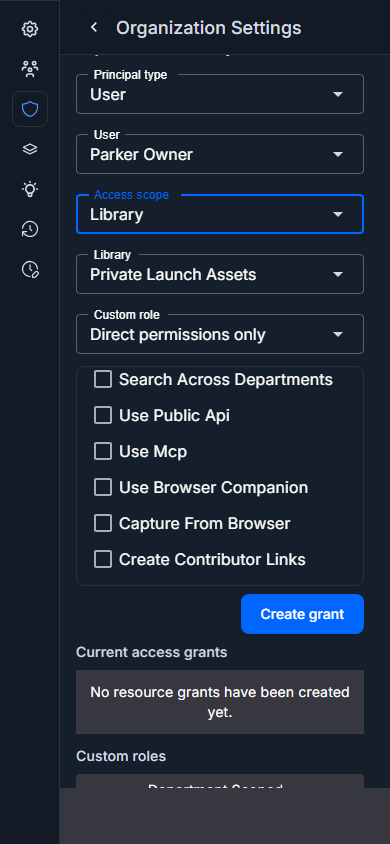
Screenshot: constrained viewport showing that granular permissions scroll instead of clipping.
The Access groups section creates saved lists of organization users. Group membership alone does not grant access; a resource grant must target the group before members inherit permissions from it.
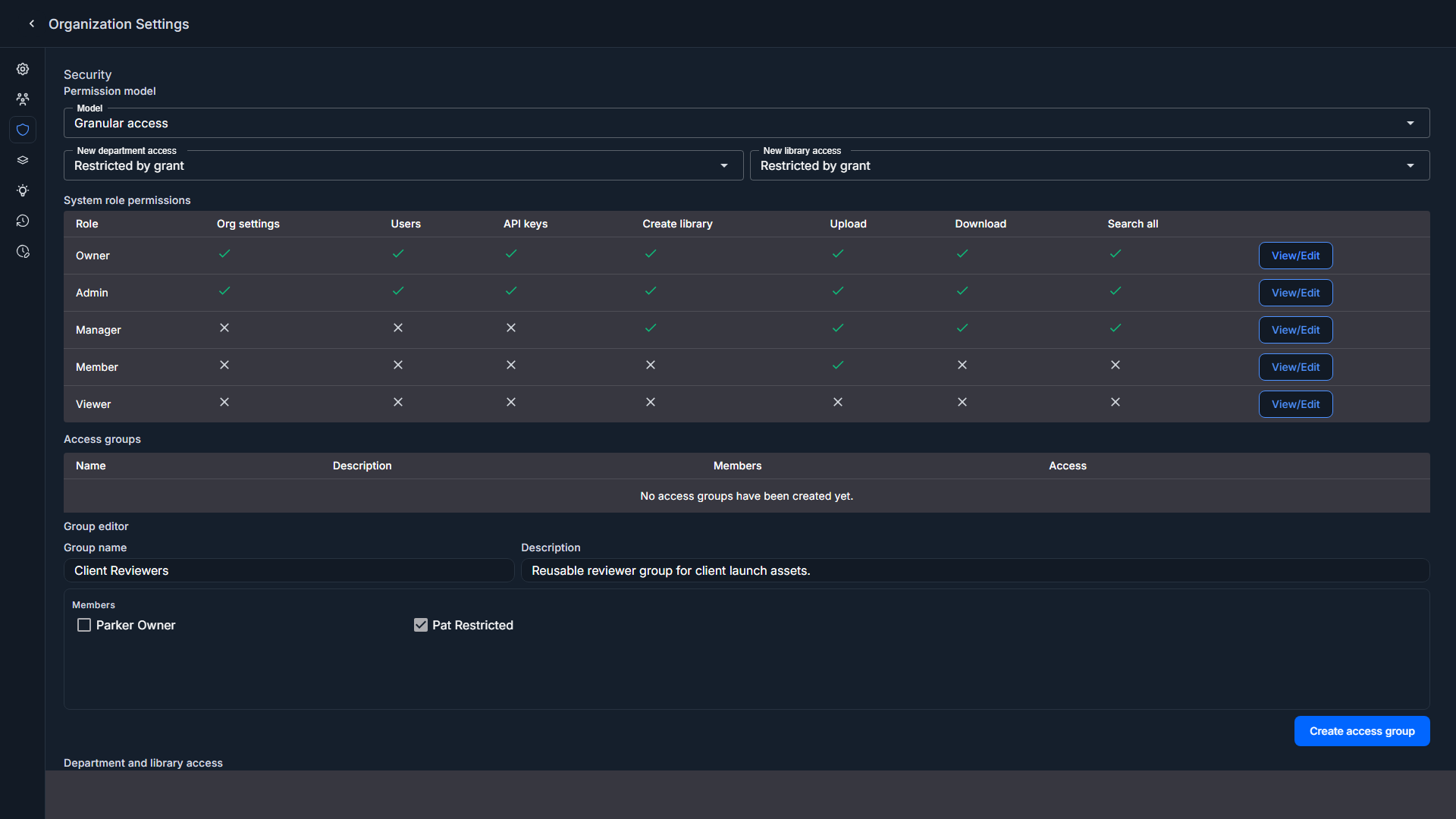
Screenshot: access group editor with saved group members.
The Department and library access section assigns a user or access group to a scope. The scope can be the whole organization, one department, or one library. Grants can apply a custom role, direct permissions, or both. When departments or libraries exist, the grant editor defaults to the narrowest available resource type so restricted library access is easy to assign.
The direct-permissions checklist inside this section has its own scroll area. Use it to reach the lower permissions without losing the selected user, scope, library or department, and custom role controls.
The Custom roles section creates reusable permission bundles. Use this when several people need the same access pattern, such as client review, contractor upload, or dataset curation. Access groups decide who receives the grant; custom roles decide which permissions the grant can include.
If a user opens the Security tab without permission, Captionator shows an access warning instead of the controls.
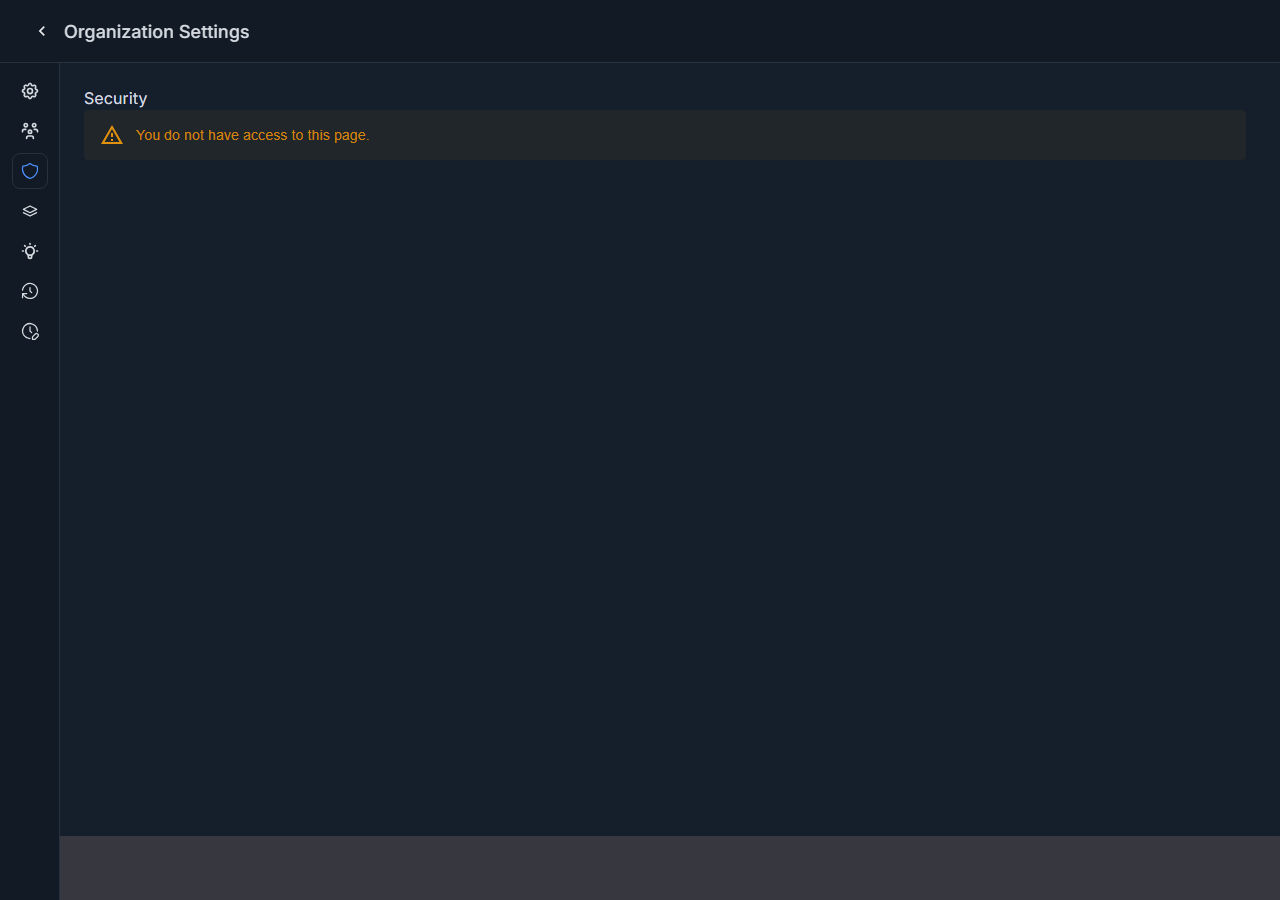
Screenshot: restricted member denied on the Security tab.
Simple Roles
Simple roles use the system role matrix. You do not need to create custom roles or grants unless you later switch to Granular access.
| Role | Typical use | Access summary |
|---|---|---|
| Owner | Business owner or primary administrator | Full organization access. Can manage all settings, users, access, libraries, media, billing, and external surfaces. |
| Admin | Trusted administrator | Full organization access, matching Owner for permission evaluation. |
| Manager | Team lead or project manager | Can create and manage libraries, upload and edit media, manage workflow activity, assign work, share libraries, download/export media, and search across the organization. |
| Member | Everyday contributor | Can view organization resources, upload media, edit metadata, comment, markup, change their own status where allowed, and search accessible libraries. |
| Viewer | Reviewer or read-only teammate | Can view accessible departments, libraries, and media. Can search the current library. |
To customize Manager, Member, or Viewer permissions:
- Open Organization Settings.
- Select Security.
- In System role permissions, select View/Edit for the role.
- Select or clear permissions in the role permission editor.
- Select Save role permissions.
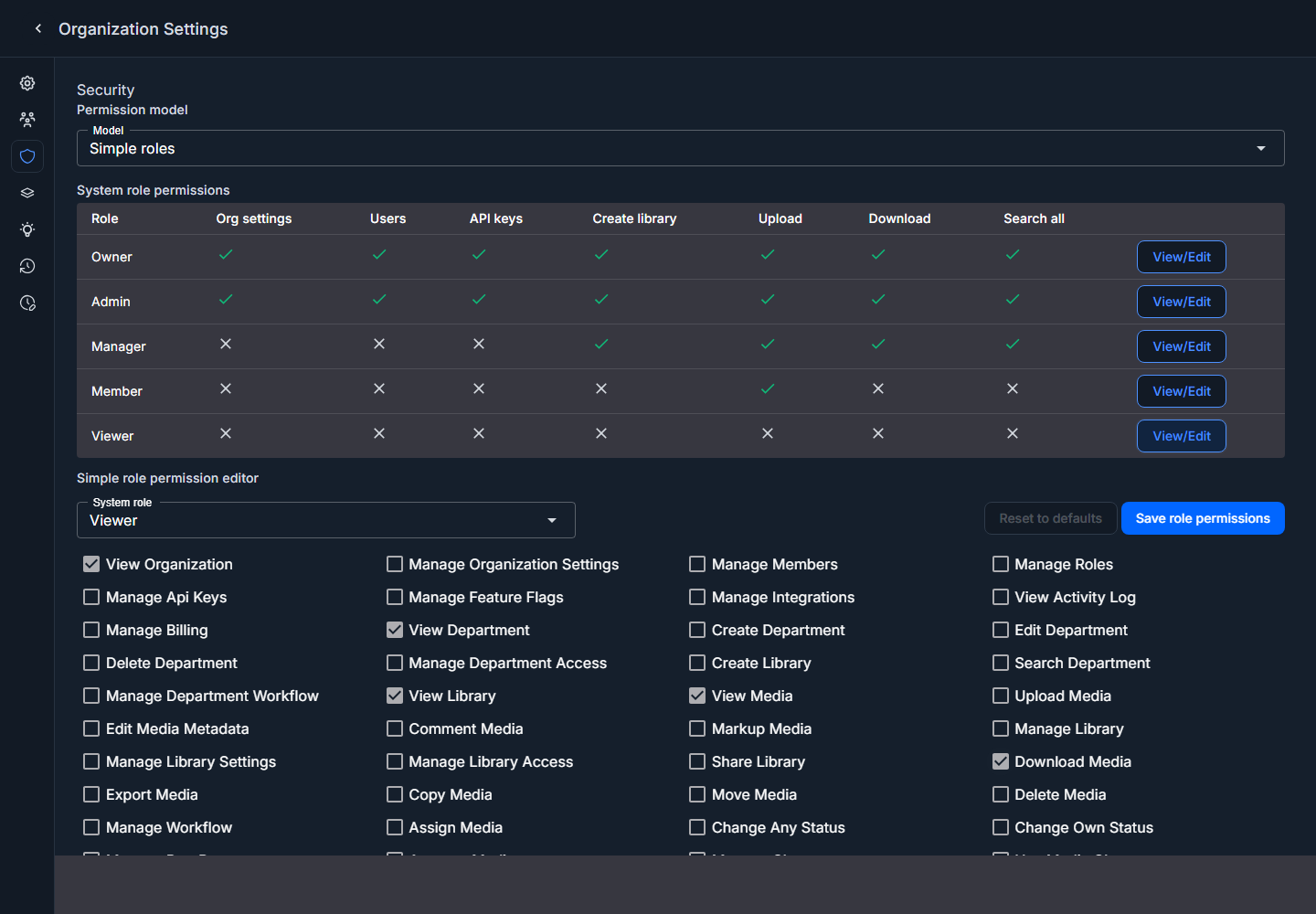
Screenshot: Simple role permission editor with editable role permissions and save/reset controls.
To return a customized role to its built-in defaults, select the role and then select Reset to defaults.
Simple roles are intentionally broad by default. They keep the app easy to use for teams that do not need department-by-department isolation, while still allowing non-owner roles to be tightened when needed.
Granular Access
Granular access adds scope checks on top of role permissions.
Captionator uses this hierarchy:
Organization -> Department -> Library -> Media
In Granular access, each department or library can be:
| Access policy | Meaning |
|---|---|
| Open to members | Users with the required role permission can access the resource. Explicit grants can add permissions for selected users or access groups. |
| Restricted by grant | Users need an explicit resource grant, unless they are an Owner or Admin. |
Default access policies decide how new departments and libraries behave when they are created. Existing resources keep their current policy unless updated.
Use Open to members when most team members should see newly created resources. Use Restricted by grant when new project areas should start locked down until someone grants access.
In Granular access, grants can target a single user or a saved access group. Use access groups when the same set of people needs the same client, department, library, or review access over time.
Resource grants are additive in Granular access. They can grant extra permissions on Open to members resources, and Restricted by grant resources still require an explicit matching grant for non-owner and non-admin users.
Access Groups
Access groups are saved lists of organization users used as grant principals. They are organization-scoped, and only active groups count during permission evaluation. A group does not define permissions by itself. It only becomes useful after a resource grant targets the group.
Good access group names describe the people in the group, not the permissions:
Client ReviewersContractor UploadersDataset CuratorsMarketing Department
To create an access group:
- Open Organization Settings.
- Select Security.
- Switch to Granular access if it is not already selected.
- In Access groups, enter a group name and optional description.
- Select the organization members who should belong to the group.
- Select Create access group.
To inspect or update an access group, select View/Edit on the group row. The editor shows the saved name, description, and selected members. Make changes and select Save access group.
The access group row also shows active organization, department, and library grants that currently reference the group. If the row says No active grants, the group has members but does not grant resource access yet.
To remove an access group from active use, select Delete on the group row. Captionator blocks deleting the group while active resource grants reference it. Archive those grants first so existing access rows do not point at an unknown group.
Use access groups for repeatable cohorts such as client reviewers, contractor teams, department staff, or temporary project reviewers. If a single person needs an exception, create a direct user grant instead.
Custom Roles
Custom roles let you name a reusable permission bundle for the organization.
Examples:
Client Reviewer: view libraries, view media, comment on media.Dataset Curator: view media, edit metadata, upload media, download media.Contractor Uploader: view one department, create library content, upload media, but no sharing or organization settings.
To create a custom role:
- Open Organization Settings.
- Select Security.
- Switch to Granular access if it is not already selected.
- In Custom roles, enter a role name and description.
- Select the permissions the role should include.
- Select Create custom role.
To inspect or update a custom role, select View/Edit on the role row. The role editor shows the saved name, description, and selected permissions. Make changes and select Save custom role.
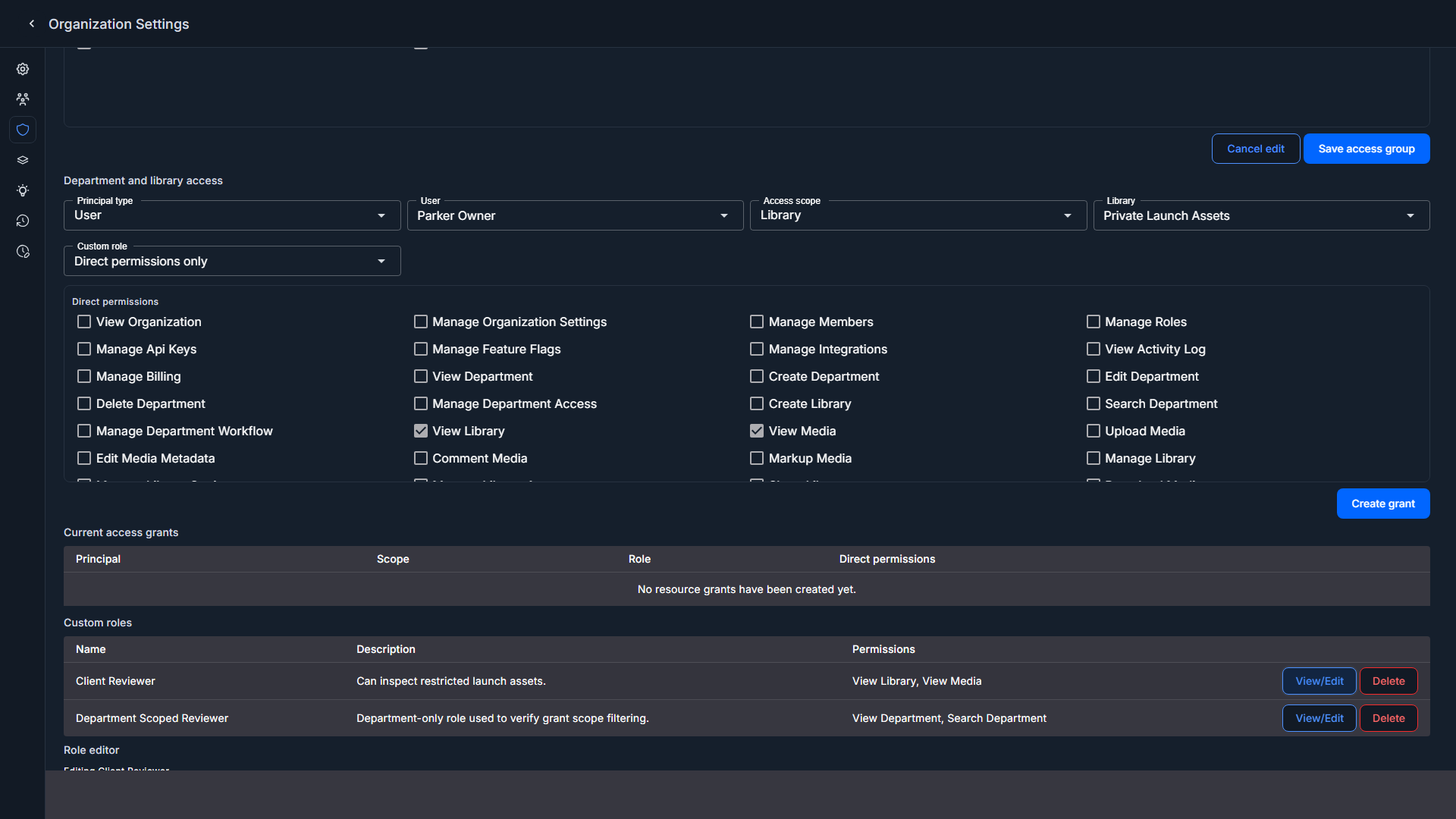
Screenshot: custom role editor showing saved permissions after View/Edit.
To remove a custom role from active use, select Delete on the role row. The role is archived in storage so audit history remains available, but it no longer appears as an assignable role.
If an active resource grant still uses the custom role, archive that grant first. Captionator blocks deleting the role while active grants reference it so existing access rows do not fall back to an unknown role.
Custom roles do not assign themselves. After creating a custom role, create a resource grant that applies the role to a user or access group and scope.
Resource Grants
Resource grants give one user or access group access to one scope.
A grant can target this principal:
- A user.
- An access group.
A grant scope can be:
- The organization.
- A department.
- A library.
A grant can include:
- A custom role.
- Direct permissions.
- Both a custom role and direct permissions.
The Custom role list only shows roles that are assignable to the selected scope type. For example, a department-only role cannot be selected for a library grant. Captionator is designed to enforce the same scope rule when reading grants, so supported permission-aware paths do not treat a department-only role as valid for a library grant.
To create a grant:
- Open Organization Settings.
- Select Security.
- Go to Department and library access.
- Choose the principal type: User or Access group.
- Choose the user or access group.
- Choose the scope type.
- Choose the exact organization, department, or library scope.
- Choose a custom role, direct permissions, or both.
- Select Create grant.
To remove access, select Archive on the grant row.
Grant rows show the principal, scope type, resource name, role, and direct
permissions, such as Access group: Client Reviewers and Library: Private Launch Assets, so a user can inspect existing department and library access
without reopening the grant editor.
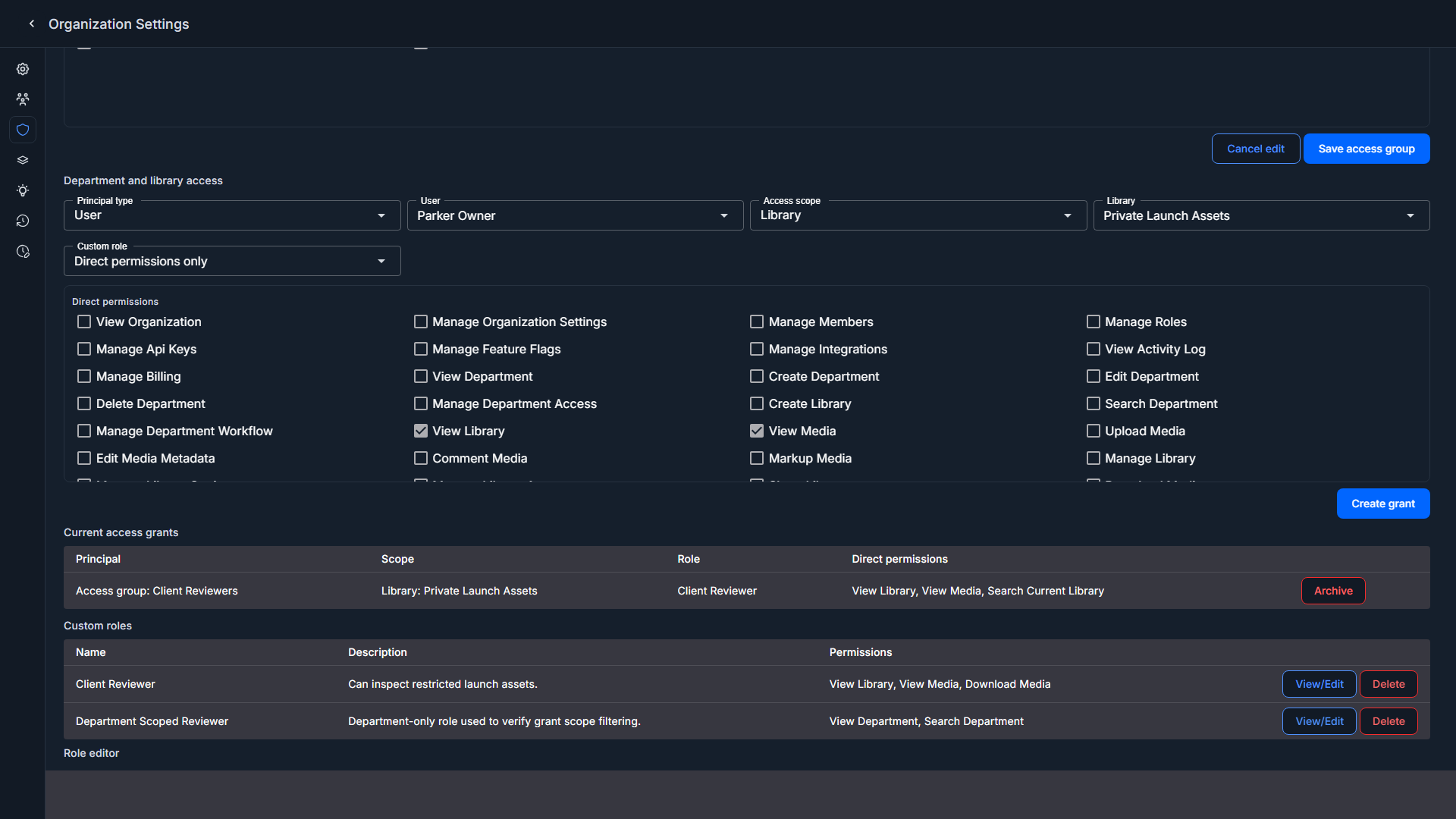
Screenshot: library resource grant row showing the access group, library scope, custom role, and direct permissions.
Use the smallest scope that solves the problem. For example, if a contractor only needs one client library, grant access to that library rather than the whole department.
After a grant is created, test the affected user account before assuming the access is correct. Confirm both the positive path and the negative path:
- The user can see and use the intended department or library.
- The user cannot open unrelated restricted departments or libraries by direct URL.
- The user cannot use hidden actions such as upload, download, sharing, or settings unless the grant includes those permissions.
What Each Permission Controls
Captionator uses named permissions internally. The table below explains the most important ones in user-facing terms.
| Permission area | Controls |
|---|---|
| Organization settings | Change organization details, permission model, retention, feature flags, and security settings. |
| Manage members | Invite users, remove users, and edit user details. |
| Manage roles | Change non-owner role assignments and create custom access structures. |
| Manage API keys | Create and delete organization API keys. |
| Manage billing | View usage and billing information. |
| Create department | Create a department inside the organization. |
| Create library | Create a library inside an allowed department. |
| View department | See a department in navigation and scoped lists. |
| View library | Open a library and see library-level media. |
| View media | Open a media item and view media details. |
| Upload media | Upload files, upload revisions, save crops, save trims, and save derived media into an allowed library. |
| Edit media metadata | Edit title, description, tags, transcript speaker labels, and generated metadata fields. |
| Comment media | Add and delete comments and submit media ratings. |
| Markup media | Create, complete, update, and delete markups. |
| Manage library settings | Edit library details, statuses, ratings, predefined sizes, and workflow assignment. |
| Share library | Change shared review link settings. |
| Download media | Download originals, exports, crops, selections, and trims. |
| Copy or move media | Copy or move media between libraries where the destination is allowed. |
| Delete media | Delete media from the current library context. |
| Search current library | Search inside the current library. |
| Search across libraries | Search across multiple accessible libraries. |
| Search across departments | Search across accessible departments. |
| Use media chat | Start a media-specific chat from the media editor. |
| Use public API | Use authenticated public API surfaces through an allowed API key. |
| Use connected integrations | Use approved connected integration surfaces when enabled. |
How Permissions Affect The App
Captionator is designed to use permission checks in supported permission-aware surfaces, including the app shell, dialogs, editor actions, repository queries, search cache keys, and API key context. The examples below describe intended user-visible behavior when those checks apply.
Examples:
- Users without organization settings permission cannot open or save organization security, retention, feature, billing, user, or API key settings.
- Users without create department permission cannot create a department, even if they try to open the dialog directly.
- Users without create library permission cannot create a library in that department.
- Users without view library permission cannot open the library route.
- Users without upload permission cannot upload files, upload revisions, save a crop, save an audio trim, or save a selected PDF area into that library.
- Users without edit metadata permission cannot update titles, descriptions, tags, or transcript speaker names.
- Users without comment permission cannot add comments, reply to comments, delete comments, or submit media ratings.
- Users without markup permission cannot create, complete, edit, or delete markups.
- Users without share permission cannot change the library shared-review link.
- Users without download permission cannot download originals, crops, trims, selections, or exports.
- Users without destination upload permission cannot copy, move, or save derived media into that destination library.
- Search cache keys include organization, user, and permission policy version so a search result generated under one user's access cannot be reused for another user's access.
API Keys And External Access
Organization API keys have their own scopes. Captionator maps those API key scopes into the same canonical permission system used by the web app.
For example:
- A media-management API scope maps to media view, upload, edit, copy, move, and delete permissions.
- A library-management API scope maps to library settings, access, and create library permissions.
- Department-management API scopes map to department create, edit, delete, and access permissions.
- Every valid API key permission also carries Use public API.
API keys still need to stay inside their assigned organization, department, and library scopes. Do not create broad API keys for a narrow integration.
Recommended Setups
Small Internal Team
Use Simple roles.
- Owner: business owner or main administrator.
- Admin: trusted operator.
- Manager: team lead.
- Member: contributors who upload and edit.
- Viewer: read-only reviewers.
This gives the least administrative overhead.
Agency With Client Libraries
Use Granular access.
- Default new departments: Restricted by grant.
- Default new libraries: Restricted by grant.
- Create one department per client or account group.
- Create access groups for each client reviewer or uploader cohort.
- Create custom roles such as
Client Reviewer,Client Uploader, andInternal Producer. - Grant each access group or external user only the client department or library they need.
This prevents accidental cross-client browsing.
Dataset Preparation Team
Use Granular access when dataset libraries have different privacy levels.
- Give dataset curators upload, edit metadata, download, and search access.
- Give reviewers view, comment, markup, and rating access.
- Keep sensitive training sets restricted by grant.
- Use API keys with narrow scopes for automation.
Rollout Checklist
Use this checklist when moving an existing organization to Granular access.
- Review current Owners and Admins.
- Confirm at least one active Owner remains on the organization.
- Decide whether new departments and libraries should start open or restricted.
- Switch the organization to Granular access.
- Save the Security tab.
- Create access groups for repeated teams, clients, departments, or reviewer cohorts.
- Create custom roles for repeatable permission bundles.
- Create the smallest necessary resource grants.
- Ask affected users to sign in and verify their access.
- Test a direct URL to a restricted library the user should not see.
- Review API keys and replace broad keys with narrower keys when possible.
- Archive grants for old contractors, clients, or completed projects.
Troubleshooting
A Button Is Missing
The action may require a permission you do not have. Ask an Owner or Admin to review your role and resource grants.
A Library Is Missing From Navigation
You may not have view access to that library or its department. In Granular access, the library may be restricted by grant.
I Can See A Library But Cannot Upload
View access and upload access are separate. Ask for upload permission on the library or a custom role that includes upload permission.
I Can Edit Media In One Library But Not Another
Permissions are scoped. You may have a grant on one library but not the other.
I Added Someone To An Access Group But They Still Cannot See The Library
Group membership alone does not grant access. Confirm the access group is active, then confirm an active resource grant targets that group for the organization, department, or library scope and includes the required permissions.
A Search Result Disappeared After Permissions Changed
This is expected. Search results are filtered by your current accessible libraries and the organization permission policy version.
An API Key Stopped Working
The key may not include the required API scope, or the organization permission policy may have changed. Create a new key with the smallest scope that supports the integration.
Security Practices
- Keep Simple roles when you do not need strict separation.
- Switch to Granular access before adding contractors, clients, or sensitive project libraries.
- Prefer library grants over department grants when access should be narrow.
- Prefer department grants over organization grants when access should be limited to one business area.
- Prefer access group grants for repeatable cohorts instead of creating the same direct grant for each person.
- Do not use Owner or Admin for routine contributors.
- Review access group membership when people join or leave a client, project, or department.
- Archive grants when a project ends. Archive active group grants before deleting the group they reference.
- Review API keys regularly and delete keys that are no longer needed.
- Test restricted users after changing defaults or creating new grants.