Purpose
Chat keeps collaboration conversations close to the media review work. Use it for team discussion, group coordination, direct messages, and conversations that need to stay connected to a specific media item or markup.
Use this guide when you need to:
- Open the full Chat screen.
- Use the floating chat window while working elsewhere.
- Understand the difference between chats, group chats, and direct messages.
- Create or rename a group chat.
- Start a direct message.
- Search chats and messages.
- Send, format, mention, or edit a message.
- Start a chat about a media item from the media editor.
- Start a chat about a specific markup.
Conversation Types
Captionator has a few conversation types:
- Chat means the user-facing conversation area.
- Group chat means a conversation with you and one or more teammates.
- Direct message means a one-to-one conversation with another teammate.
- Media chat means a chat message or conversation started from a media item or markup so the first message links back to that item.
To create a conversation, use New group chat, New message, or Start Chat About This Media.
Before You Start
Chat must be enabled for your organization. You also need to be a member of the organization and, for group or direct messages, the teammate you want to message must also belong to the organization.
If Chat is disabled, the Chat screen shows a disabled state and asks you to contact an organization administrator.
Open Chat
You can open Chat from several places:
- Select Chat in the left navigation.
- Select the top-bar Chat button to open the floating chat window.
- Select Open team chat from the Collaboration screen quick actions.
- Select a chat mention or chat notification.
The full Chat screen is best for longer work. The floating chat window is best when you want to keep the current page open.
Full Chat Screen
The full Chat screen has two main areas.
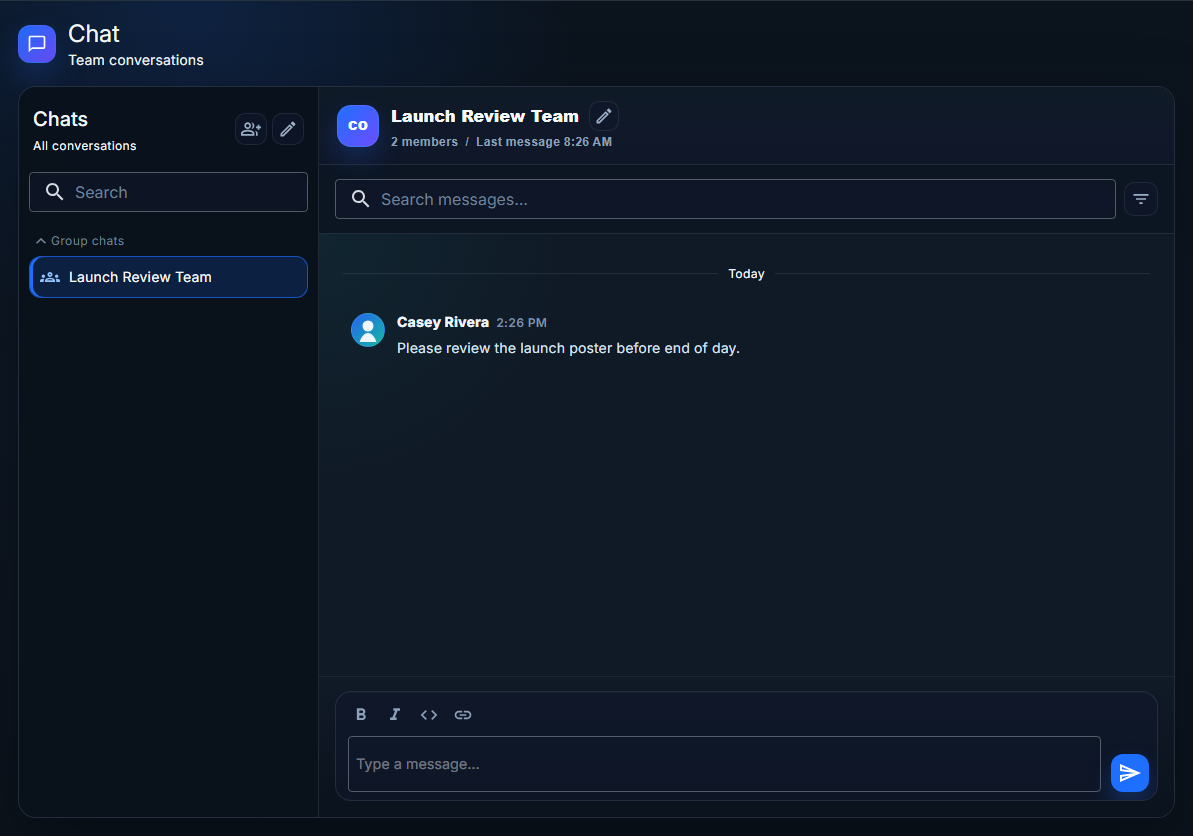
The left side is the conversation list:
- New group chat creates a group conversation.
- New message starts a direct message.
- Search filters the conversations shown in the list.
- Conversation groups organize available chats, such as Group chats and Direct Messages.
- A New badge marks conversations with unread activity.
The right side is the selected conversation:
- The header shows the chat name, members, last activity, and rename action when available.
- Search messages searches inside the selected conversation.
- The filter button beside message search opens sender and date filters.
- The message list shows date separators, sender names, message times, edited labels, unread markers, and typing indicators.
- The composer at the bottom sends new messages or saves edits.
When you open an existing conversation, the message area scrolls to the most recent messages.
Floating Chat Window
Use the top-bar Chat button to open the floating chat window.
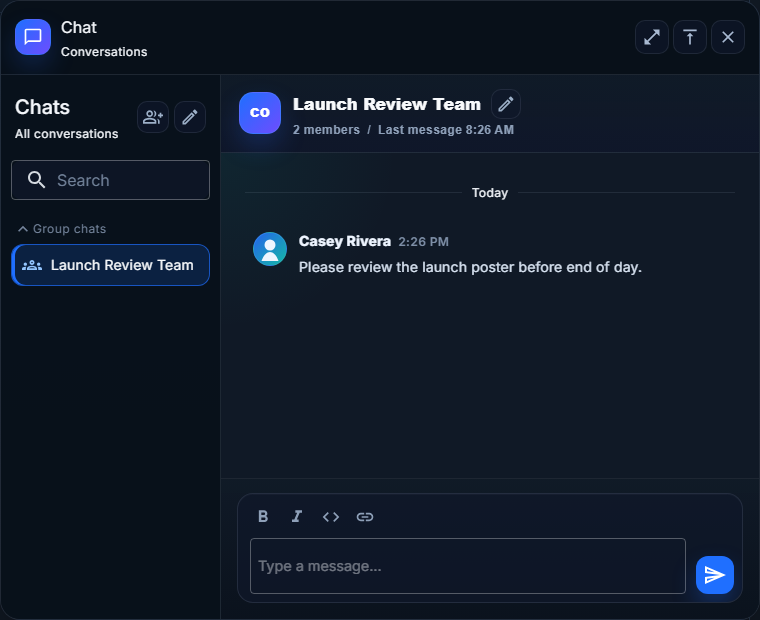
The floating chat window includes the same core tools as the full Chat screen:
- Conversation list.
- Conversation search.
- Message list.
- Message composer.
- Group chat and direct message actions.
The window header includes:
- Open full chat to move into the full Chat screen.
- Move to top or Move to bottom to change the window position.
- Close to hide the floating window.
Use the floating window when you are reviewing media, checking activity, or working in another part of the app and want to keep a conversation nearby.
Find A Conversation
Use the Search field in the conversation list to filter your chats. Search checks conversation names and group labels.
Examples:
- Search for a group name, such as
Launch Review Team. - Search for
Group chatsto narrow the list to group conversations. - Search for a teammate name to find a direct message when one exists.
If no chat matches your search, the list shows No chats found.
Message search is separate. Use Search messages... in the selected conversation when you want to find text inside the conversation.
The message search filter button can narrow results by:
- Sender.
- Date range.
Select a search result to jump to that message in the thread.
Read And Send Messages
Select a conversation from the list, then use the composer at the bottom of the thread.
The composer supports:
- Plain text messages.
- Bold formatting.
- Italic formatting.
- Inline
codeformatting. - Links.
- Mentions using
@. - Multi-line messages with line breaks.
To send a message:
- Select a chat.
- Type your message in Type a message....
- Select the send button.
The send button is disabled until you choose a conversation and type message text.
Messages you send appear on the right side of the thread with your avatar on the right. Messages from teammates appear on the left side of the thread.
Edit Your Own Message
You can edit messages that you sent.
- Hover over or focus your message.
- Select the edit action.
- Update the text in the composer.
- Select the send button to save.
While editing, the composer shows Editing message. Select the close action in the edit banner or press Escape to cancel editing.
Edited messages show an (edited) label in the thread.
Create A Group Chat
Select New group chat in the conversation list header.
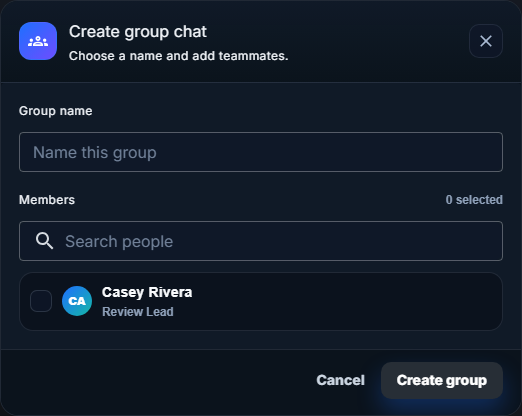
To create a group chat:
- Enter a Group name.
- Search or scroll through the Members list.
- Select each teammate you want to include.
- Select Create group.
After the group is created, Captionator opens the new conversation.
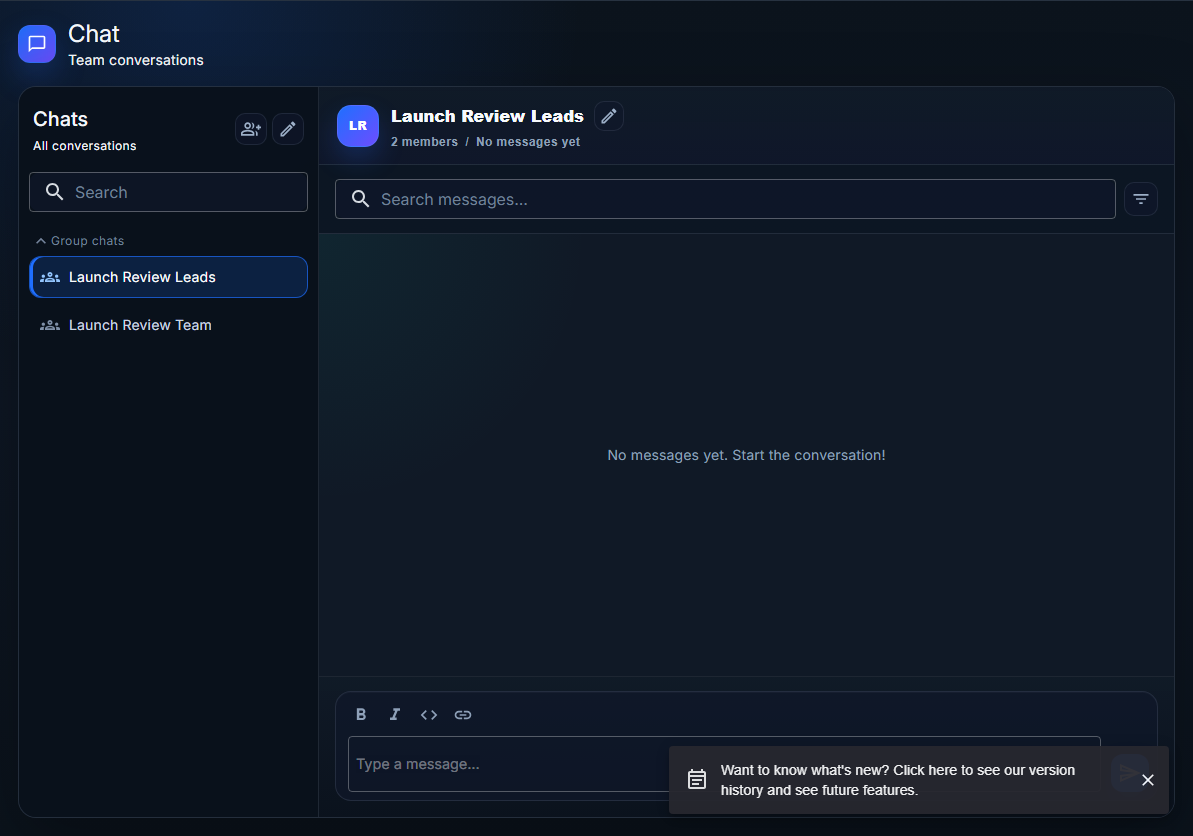
Good group names describe the work or team, such as:
Launch Review LeadsBrand ApprovalPhoto RetouchingClient Feedback
Rename A Group Chat
If you created a group chat, the conversation header shows a rename action.
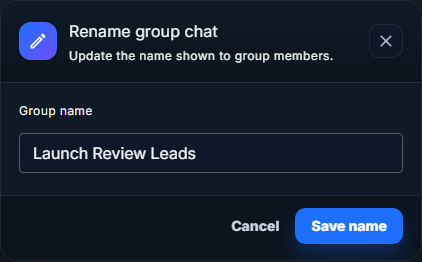
To rename a group chat:
- Open the group chat.
- Select the rename action in the conversation header.
- Enter the new group name.
- Select Save name.
Only group chats can be renamed from the chat header. Direct messages use the other participant's name.
Start A Direct Message
Select New message in the conversation list header.
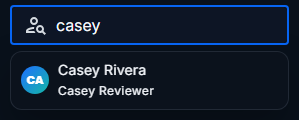
To start a direct message:
- Select New message.
- Search for a teammate by name, handle, or visible profile detail.
- Select the teammate.
Captionator opens the existing direct message if one already exists. If no direct message exists yet, Captionator creates it and opens the thread.
Direct messages appear under Direct Messages in the conversation list.
Chat About A Specific Media Item
Use media chat when the conversation should stay tied to a particular asset.
To start a chat from the media editor:
- Open the library that contains the media item.
- Select the media item to open the media editor.
- Select the Collab section in the editor.
- Select Start Chat About This Media.
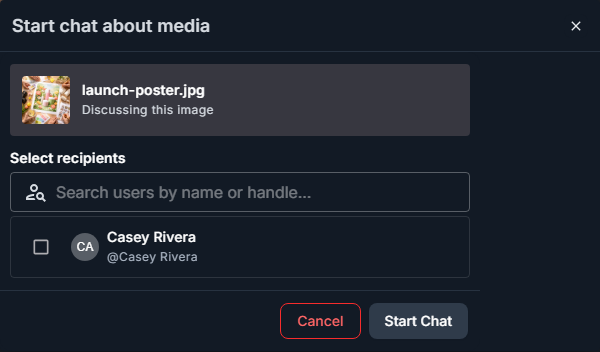
In the start chat dialog:
- Review the media preview.
- Search for or select recipients.
- Select Start Chat.
If you select one recipient, Captionator opens or creates a direct message with that teammate. If you select multiple recipients, Captionator creates a group chat. The first message includes a link back to the media item.
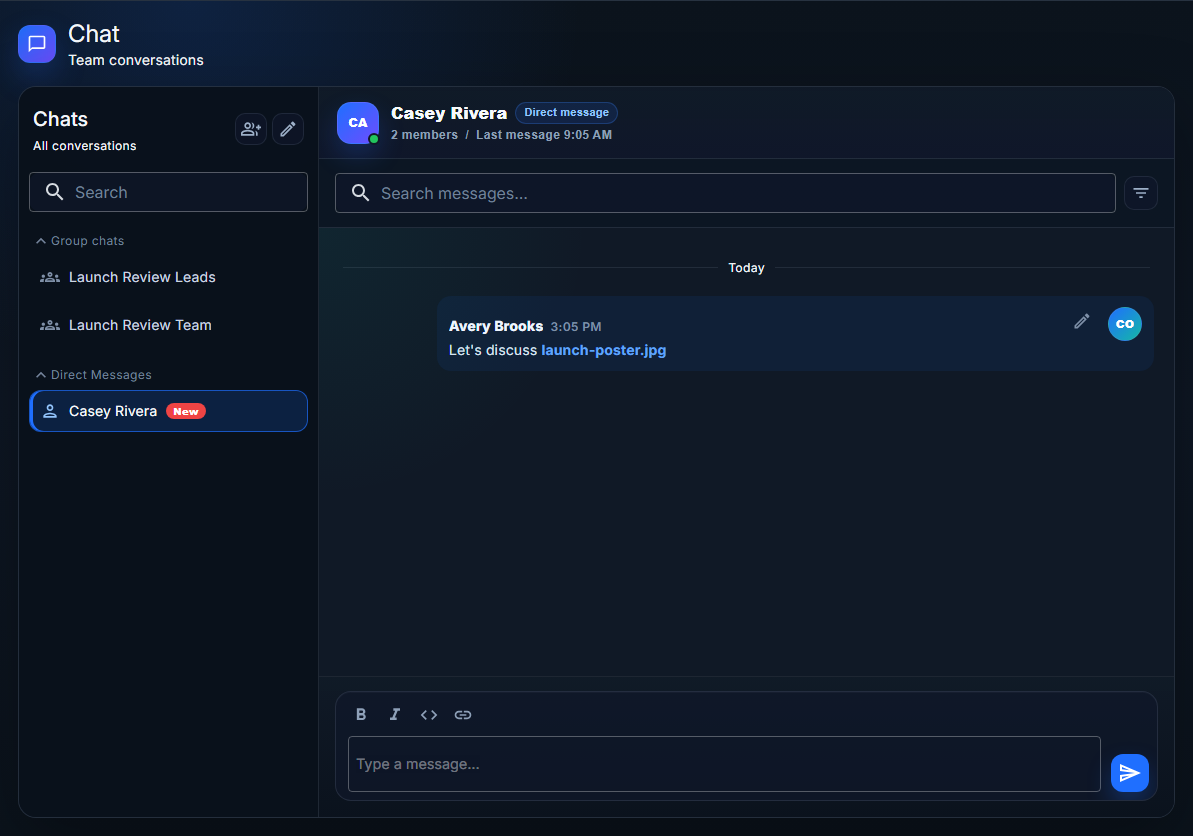
Use the media link in the first message to return to the referenced media item.
Chat About A Markup
Markup chat is useful when the conversation is about a specific annotation rather than the whole media item.
To start a chat from a markup:
- Open the media item in the media editor.
- Select the Markup section.
- Find the markup you want to discuss.
- Select the chat action on that markup.
- Choose recipients.
- Select Start Chat.
The first message includes the media link and markup context, such as the markup number and markup text. Use markup chat for questions like "is this the area to retouch?" or "can this note be marked complete?"
Mentions And Notifications
Use @ in the composer to mention a teammate. Mentions help route attention to
the right person without moving the conversation out of context.
Mention notifications can appear in:
- The notification dropdown.
- The Collaboration screen mentions area.
- Chat unread indicators.
Select a chat mention to open the relevant conversation. Select a media mention to open the related media item.
When To Use Chat, Comments, Or Markup
Use Chat for live discussion, coordination, quick questions, and group decisions.
Use Media comments when feedback should remain as review notes on the media item.
Use Markup when feedback needs to point to a specific visual, document, audio, or video location.
Use Markup chat when a markup needs discussion but the final markup should remain concise.
Examples:
| Need | Best tool |
|---|---|
| "Can someone approve this today?" | Chat |
| "The logo needs to move left." | Markup |
| "Client requested a warmer color pass." | Media comment |
| "Does markup 3 still need work?" | Markup chat |
| "The launch review team should coordinate final approval." | Group chat |
Common Questions
Why can I rename one group chat but not another?
You can rename group chats that you created. If you do not see the rename action in the header, you may not be the creator, or the conversation may be a direct message.
Why did starting a media chat open a direct message?
When you select one recipient, Captionator uses a direct message so you do not create duplicate one-person groups. When you select multiple recipients, Captionator creates a group chat.
What happens if I already have a direct message with that teammate?
Captionator opens the existing direct message and adds the media-chat message to that thread.
Why can I not send a message?
Check that:
- A conversation is selected.
- The message box contains text.
- Chat is enabled for your organization.
- You are still a member of the organization and the conversation.
Can I use media chat instead of comments?
You can, but they serve different purposes. Use chat for conversation. Use comments and markups for review feedback that should stay directly attached to the media record.
Next Steps
- Use the Collaboration Screen User Guide to learn how chat connects with assigned work, mentions, activity, and quick actions.
- Use the Workflow Editor User Guide to connect chat and review activity to your organization's workflow process.