Purpose
Organization invites let an Owner, Admin, or authorized member add another person to a Captionator organization. The invite can be delivered by email, by a copied invite link, or by a copied invite code.
Use this guide when you need to:
- Invite a teammate, reviewer, client, contractor, or collaborator.
- Choose the organization role the invited user should receive.
- Confirm what the invite email contains.
- Copy the invite link when email delivery is delayed or not convenient.
- Share the invite code so the recipient can paste it into Captionator.
- Resend or cancel a pending invite.
- Explain the full accept process to the recipient.
Screenshots in this guide use documentation sample names and addresses. Live
invite values are redacted as INVITE-CODE. Your organization name, users,
invite code, and dates will be different.
Who Can Send Invites
You can send invites from the Users area of Organization Settings when your account can manage organization members. Owners and Admins normally have this access. Organizations using Granular access can also grant member-management permission through their security model.
If you do not see the invite form, ask an Owner or Admin to review your role and organization permissions.
Invite Roles
Choose the smallest role that gives the recipient the access they need.
| Role | Typical use |
|---|---|
| Admin | Trusted operator who can help manage the organization. |
| Manager | Team lead or producer who manages work but does not need full ownership. |
| Member | Everyday contributor who uploads, reviews, comments, or edits where allowed. |
| Viewer | Read-only reviewer, client, stakeholder, or approver. |
The selected role controls the user's baseline access after the invite is accepted. If the organization uses Granular access, the user may also need department or library grants before they can open restricted work areas.
Open The Users Screen
- Sign in to Captionator.
- Select Organization in the left navigation.
- In Organization Settings, select Users.
- Review the current organization users and the Invite users form.
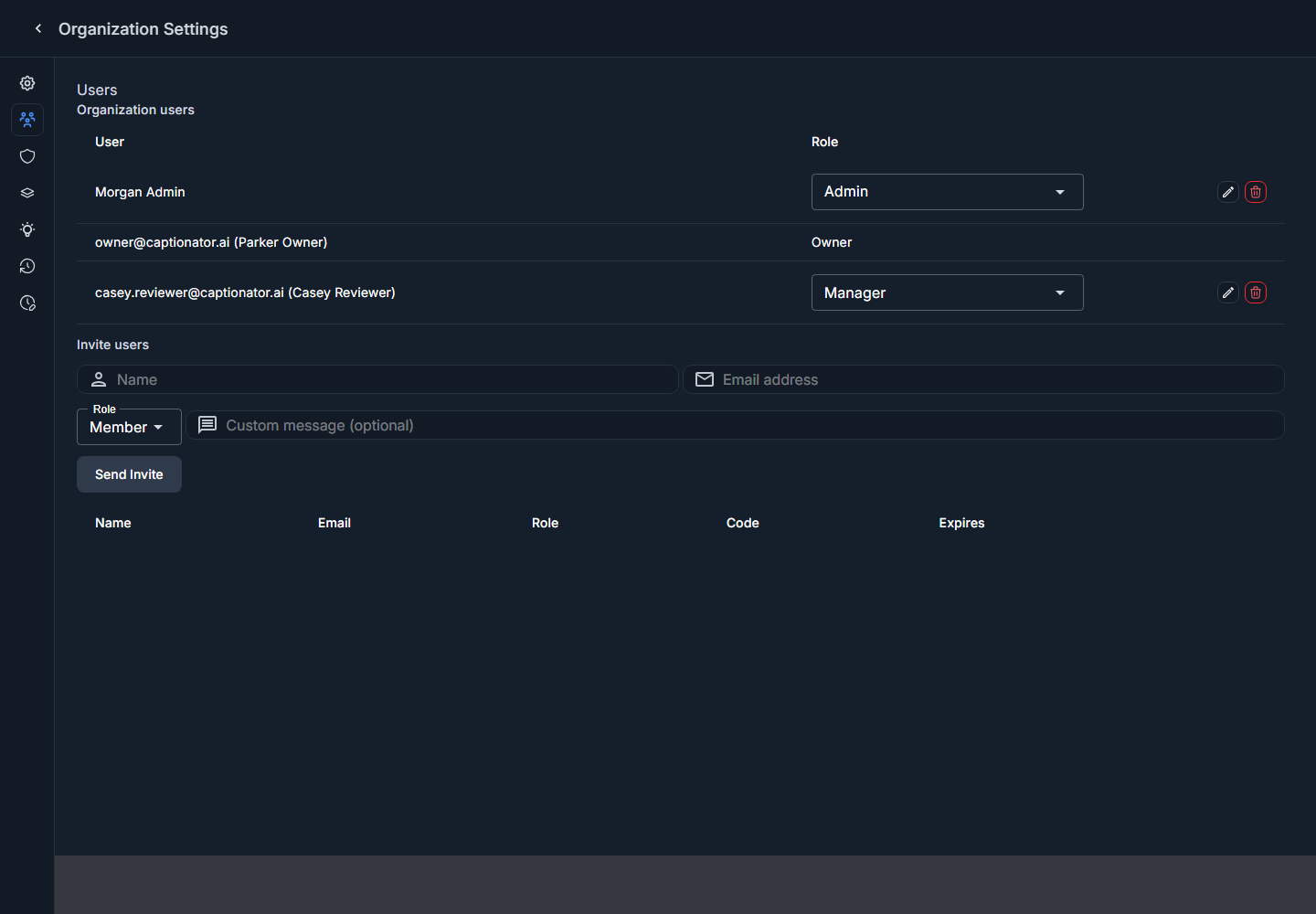
Screenshot: Organization Settings opened to Users with current members and the invite form.
Create And Send An Invite
- In Invite users, enter the recipient's display name.
- Enter the recipient's email address.
- Choose the role the recipient should receive after accepting the invite.
- Optionally enter a custom message. This message appears in the email.
- Select Send Invite.
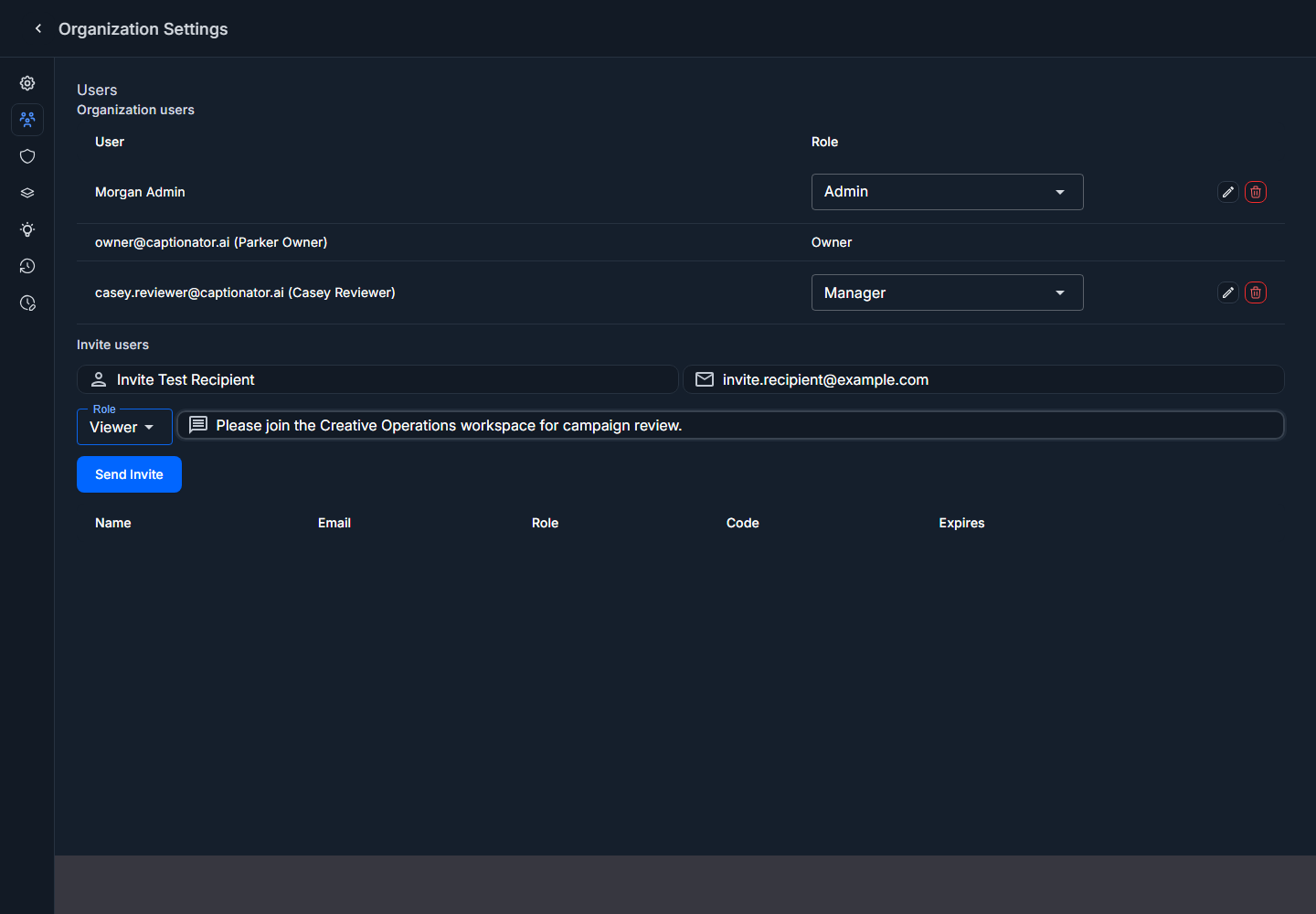
Screenshot: invite form filled with name, email, role, and a custom message.
After the invite is created, Captionator adds a pending invite row. The row shows the recipient name, email, assigned role, invite code, expiration date, and invite actions.
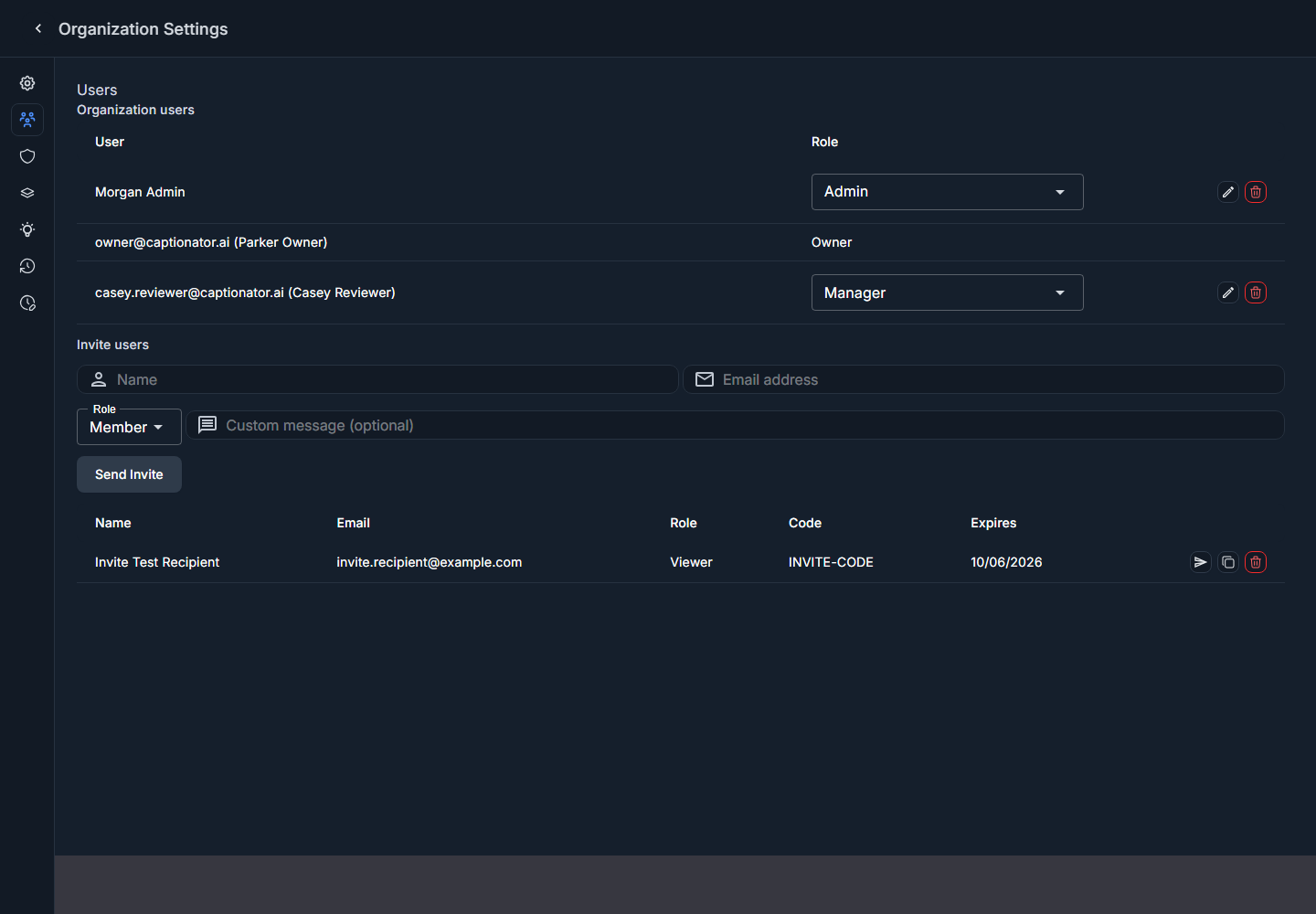
Screenshot: pending invite row after selecting Send Invite.
Pending invites expire 10 days after they are created. If the recipient does not accept in time, create a new invite.
What The Recipient Receives By Email
When email delivery succeeds, the recipient receives a Captionator invitation email. The email includes:
- The organization name.
- The inviter name.
- The role they will receive.
- Your optional custom message.
- An Accept Invitation button.
- A direct accept link.
- A manual invite code.
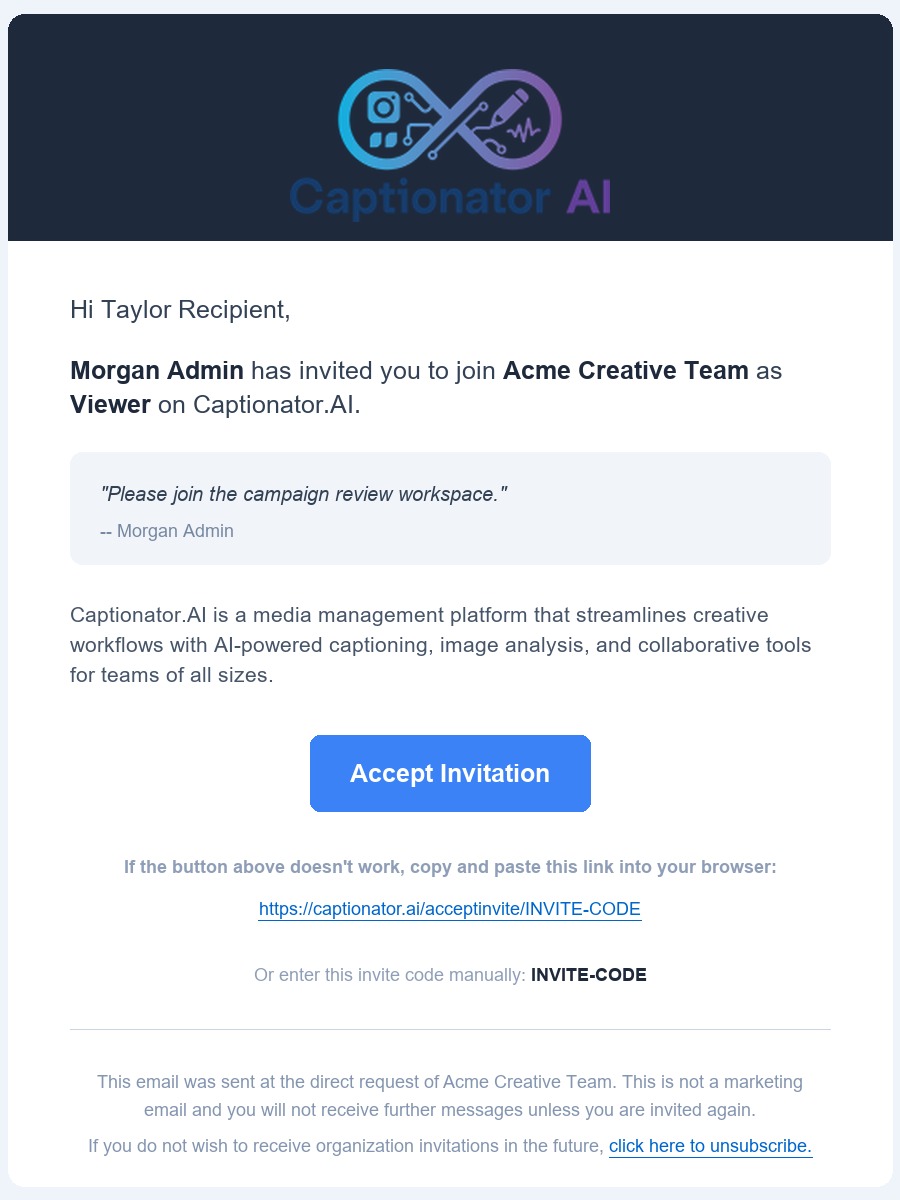
Screenshot: example invite email with accept button, direct link, and manual code.
The recipient can use the button, the direct link, or the manual code. The
button and direct link open the invite details page. The code can be pasted into
Captionator's accept-invite page at https://captionator.ai/acceptinvite.
Treat the button, link, and code as access-bearing invite credentials. Share them only with the intended recipient. If you send one to the wrong person, cancel the invite and create a new one.
Copy And Share An Invite Link
Use the copied link when the recipient cannot find the email, prefers a direct message, or needs the invite sent through another channel.
- Find the pending invite row.
- Select the Copy invite link action.
- Captionator copies the direct accept link to your clipboard and shows the copied link in a message at the bottom of the screen.
- Paste the link into a trusted communication channel for the intended recipient.
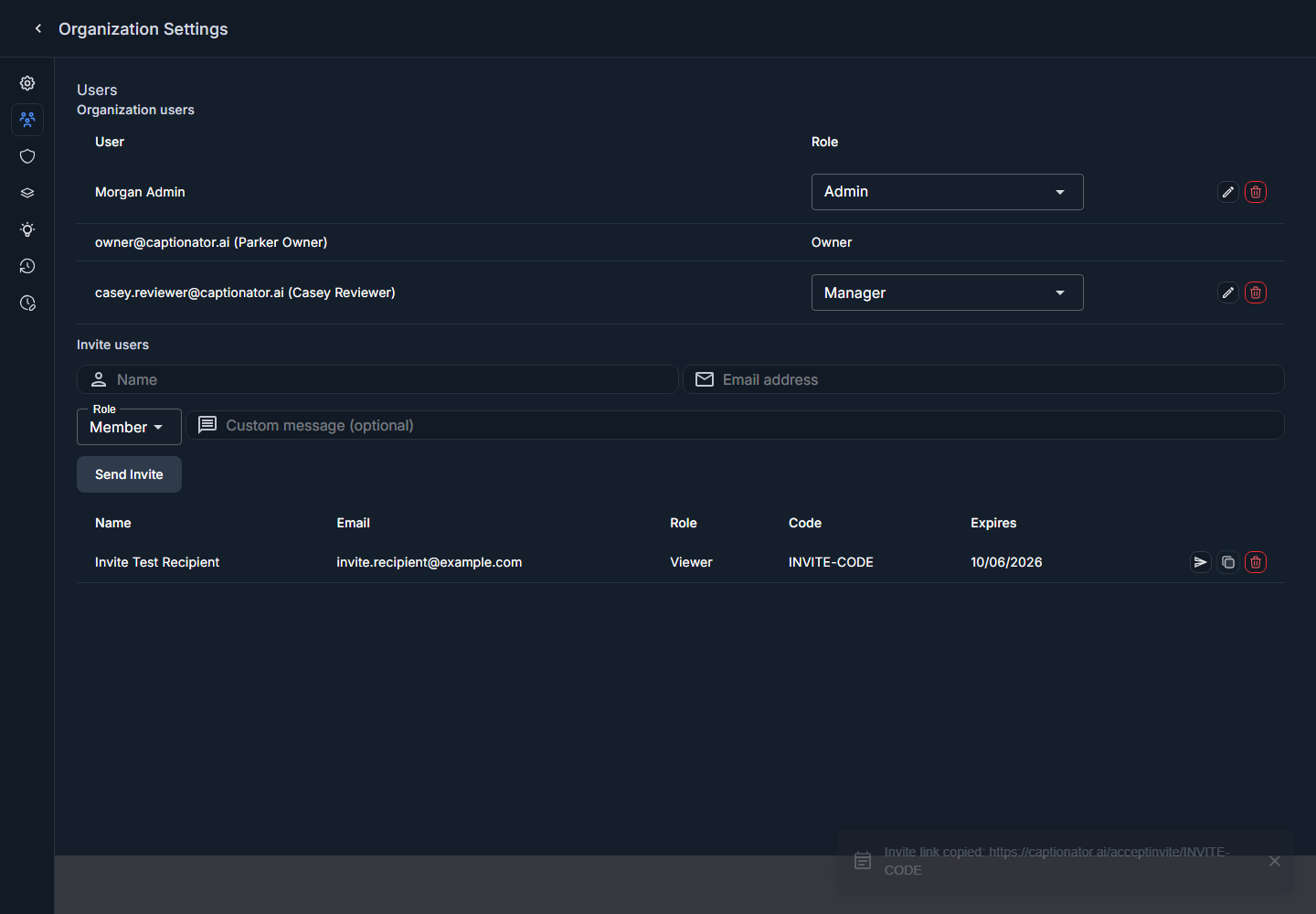
Screenshot: pending invite row after the copy-link action.

Screenshot: copy-link confirmation message.
If your browser blocks automatic clipboard access, Captionator shows the invite link in the message so you can copy it manually.
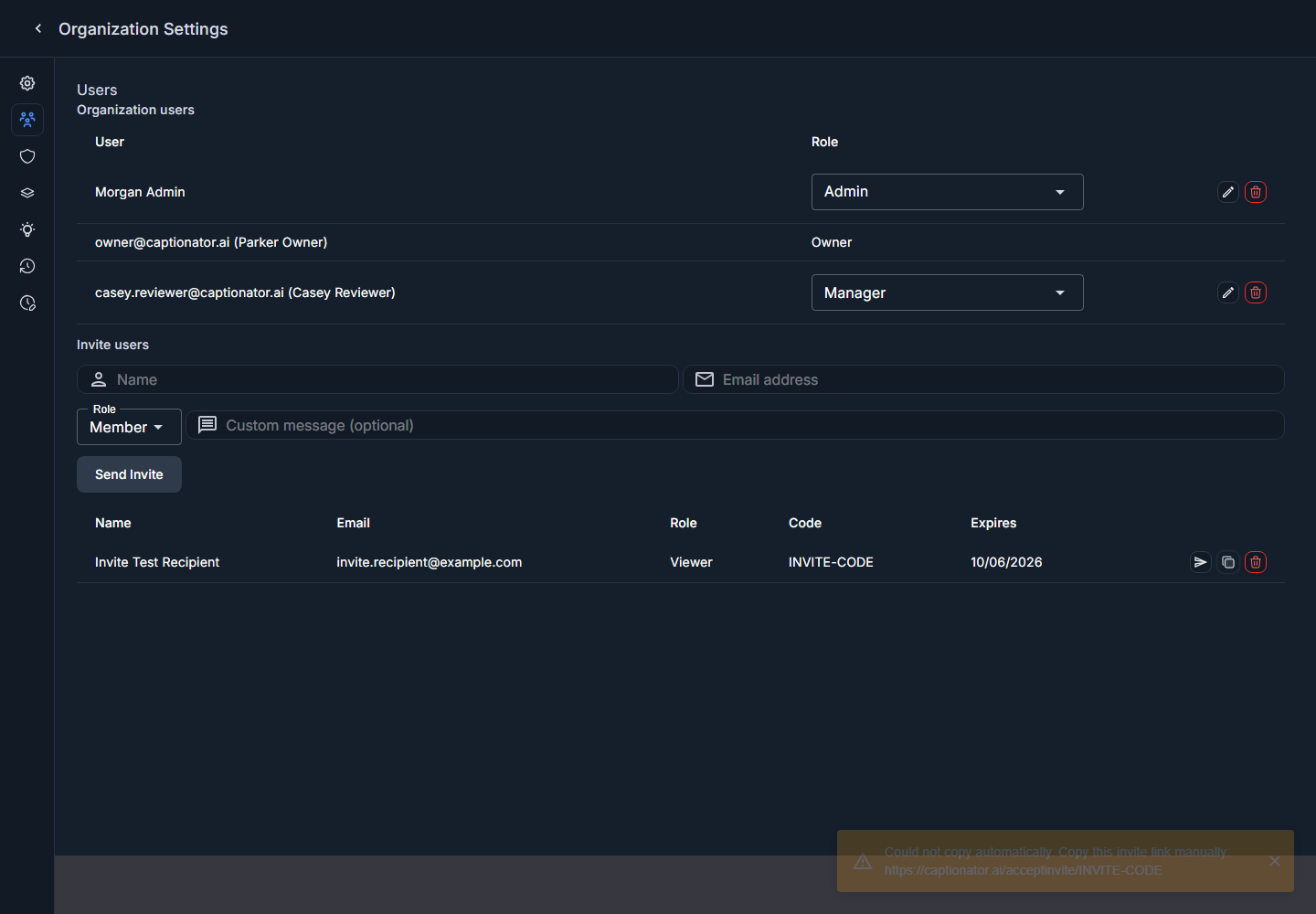
Screenshot: fallback message shown when the browser blocks automatic clipboard copying.

Screenshot: manual-copy fallback message.
Share An Invite Code Manually
Use the invite code when the recipient cannot open the link directly or when you need to share the invite through a system that strips links.
- Find the pending invite row.
- Copy the value in the Code column.
- Send that code to the intended recipient through a trusted channel.
- Tell the recipient to open
https://captionator.ai/acceptinviteand paste the code into the invite-code field.
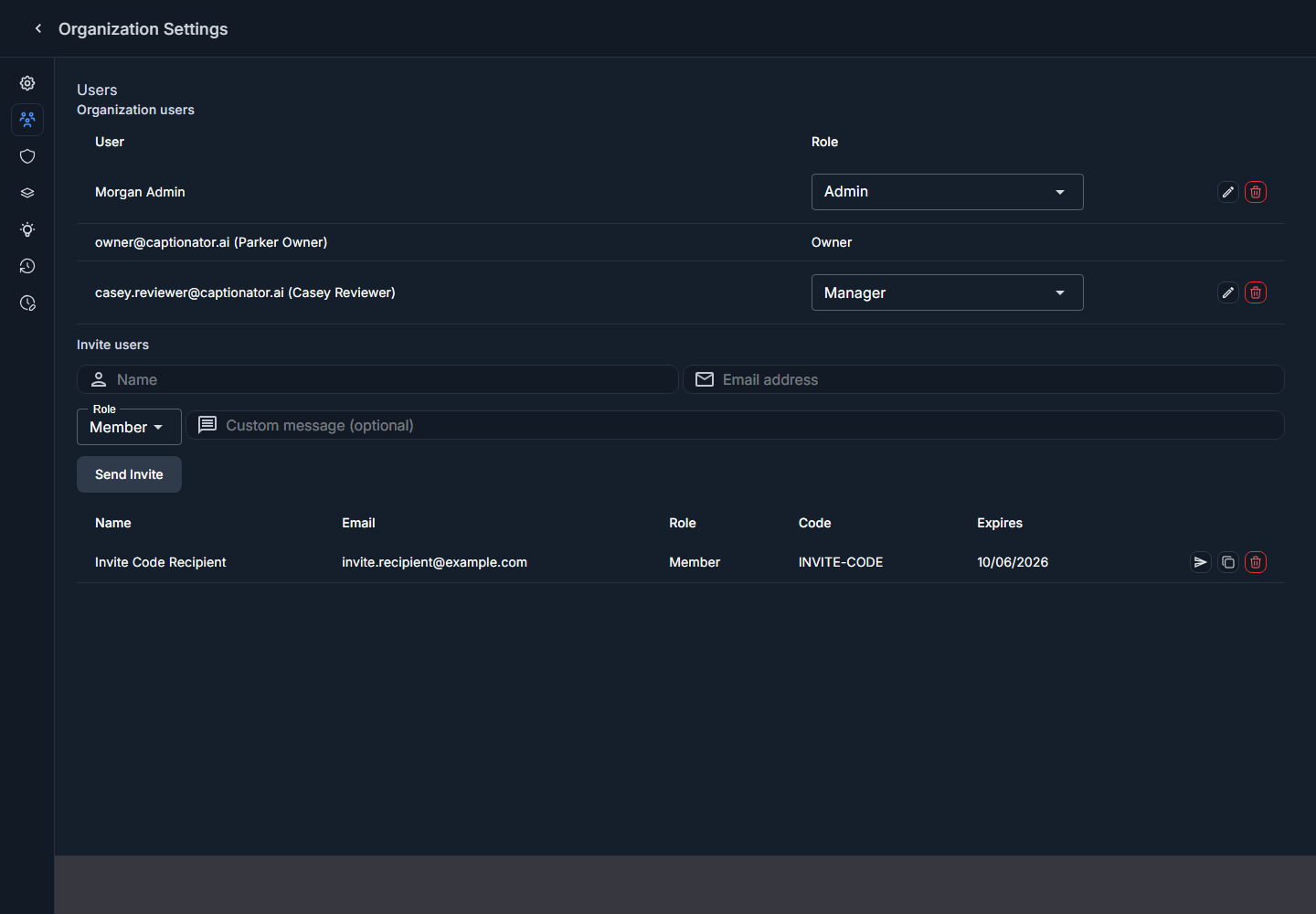
Screenshot: pending invite row with a manual invite code.
There is no separate copy-code button. Copy the visible Code column value directly.
Accept An Invite From Email Or Link
The email button and copied invite link open the same invite details page.
- Open the Accept Invitation button from the email, or open the copied invite link.
- Sign in with the Captionator account that should join the organization, or create that account if Captionator asks you to authenticate.
- Review the organization name, inviter, recipient name, and assigned role.
- Select Accept invite.
Do not accept the invite if the details do not match the person and organization you expected. Ask the sender to cancel it and issue a new invite.
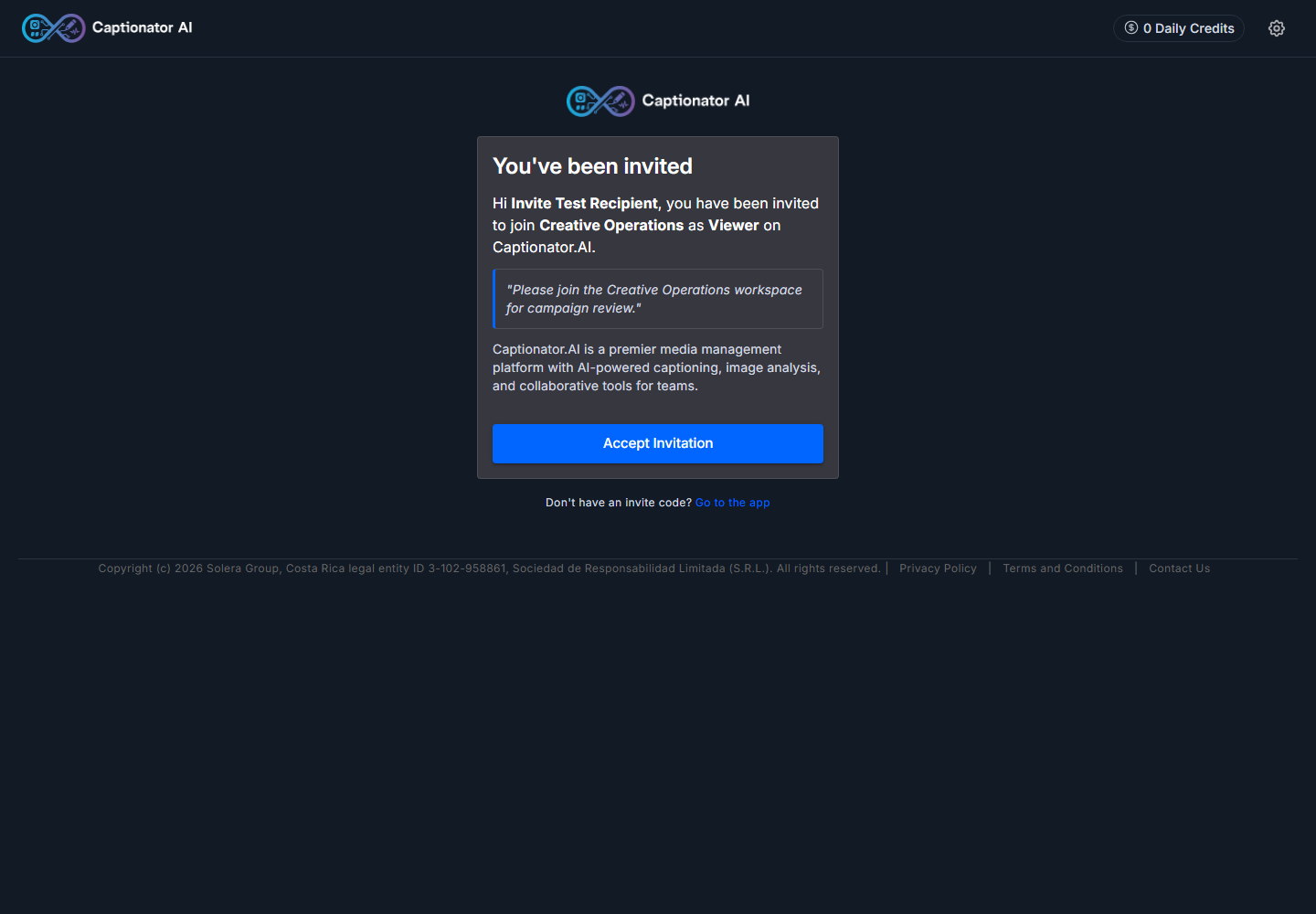
Screenshot: invite details page opened from an invite link.
After acceptance, Captionator takes the user into the app with the invited organization available.
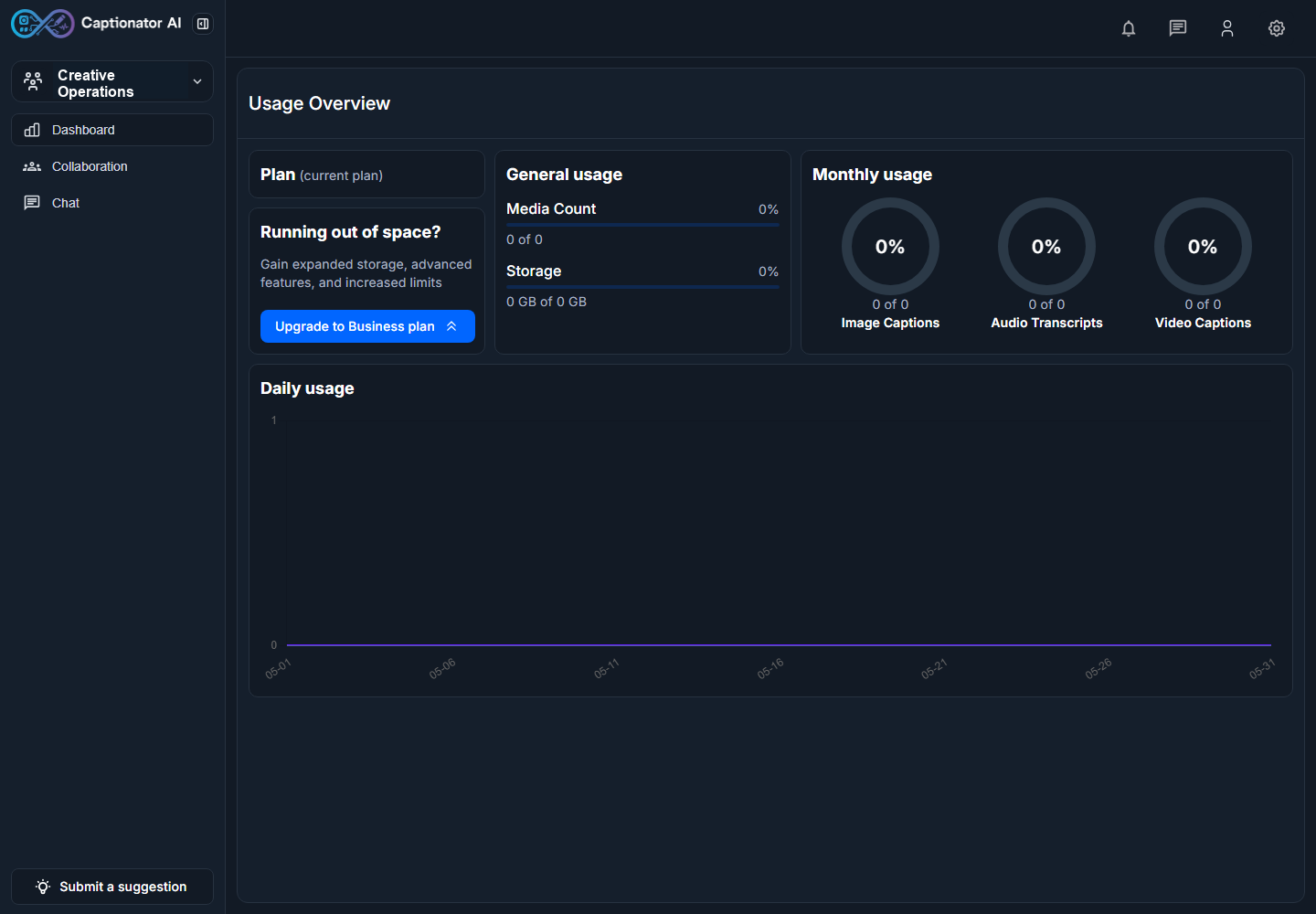
Screenshot: app landing page after accepting an invite link.
Accept An Invite With A Code
If the recipient only has the invite code:
- Open
https://captionator.ai/acceptinvite. - Paste the code into Invite code.
- Wait for Captionator to load the invite details.
- Review the organization name, inviter, recipient name, and assigned role.
- Sign in with the account that should join the organization, then select Accept invite.
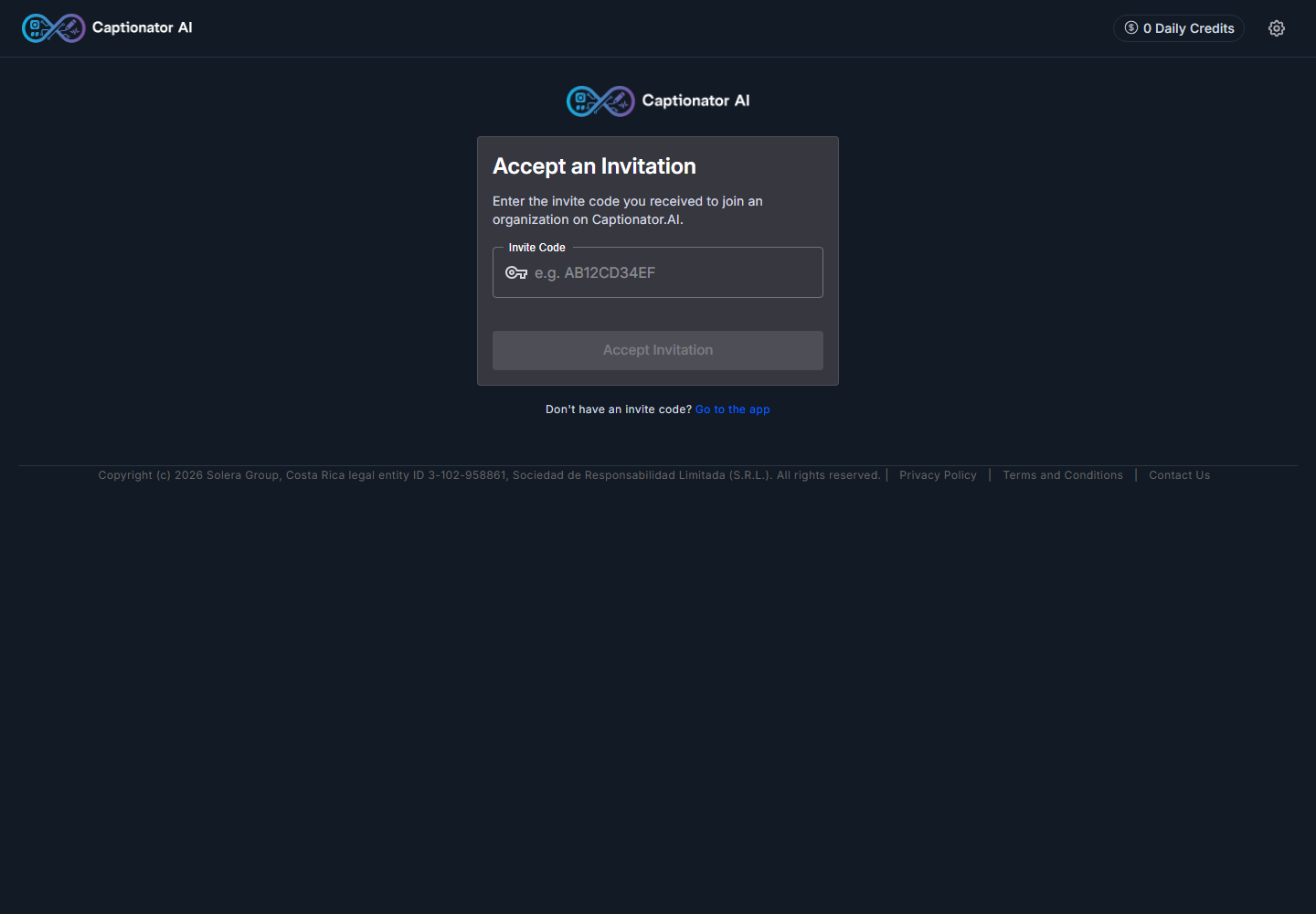
Screenshot: accept-invite page before a code is entered.
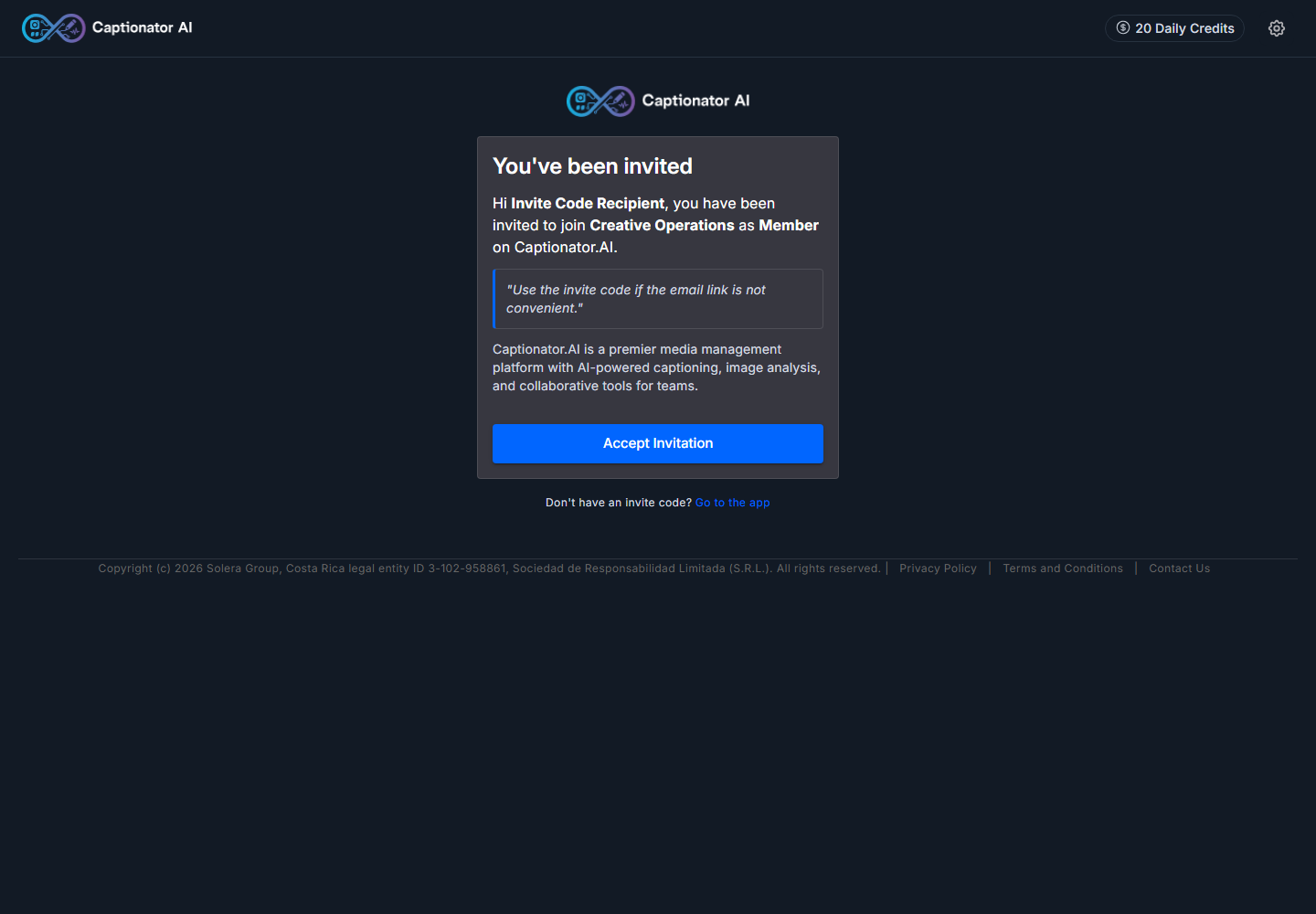
Screenshot: invite details after entering a valid code.
After the code invite is accepted, the user lands in the app just like the direct-link path.
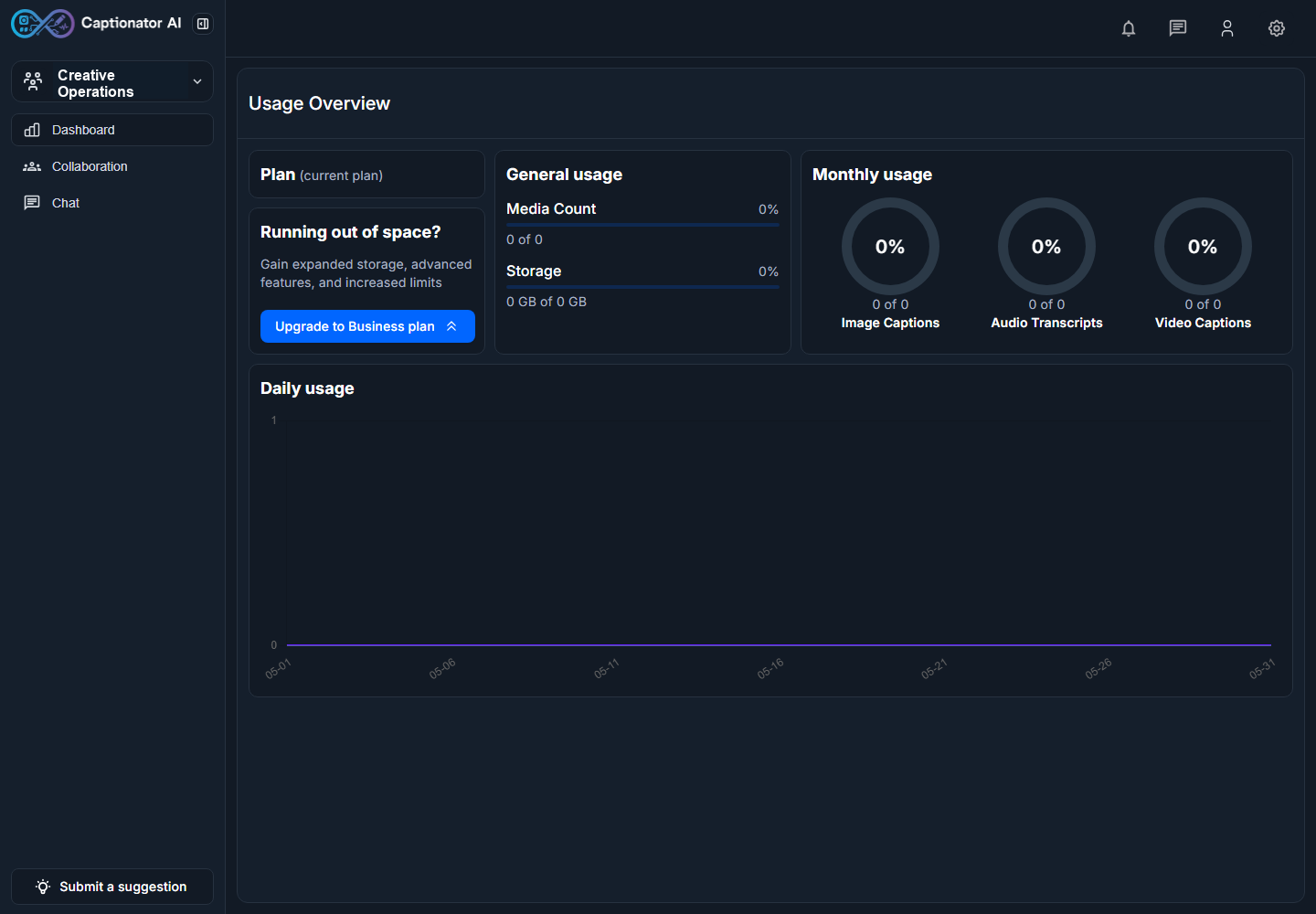
Screenshot: app landing page after accepting an invite code.
Manage Pending Invites
The pending invite row has three actions:
| Action | What it does |
|---|---|
| Resend invite | Sends the invite email again. |
| Copy invite link | Copies the direct accept link, or shows the link if browser clipboard access is blocked. |
| Cancel invite | Deletes the pending invite so the code and link can no longer be accepted. |
The row actions are icon buttons. The paper-plane icon resends the invite, the overlapping-squares icon copies the invite link, and the trash icon cancels the invite.

Screenshot: resend, copy-link, and cancel icons on a pending invite row.
Resend An Invite
Use Resend invite when the recipient did not receive the email or needs a fresh email reminder.
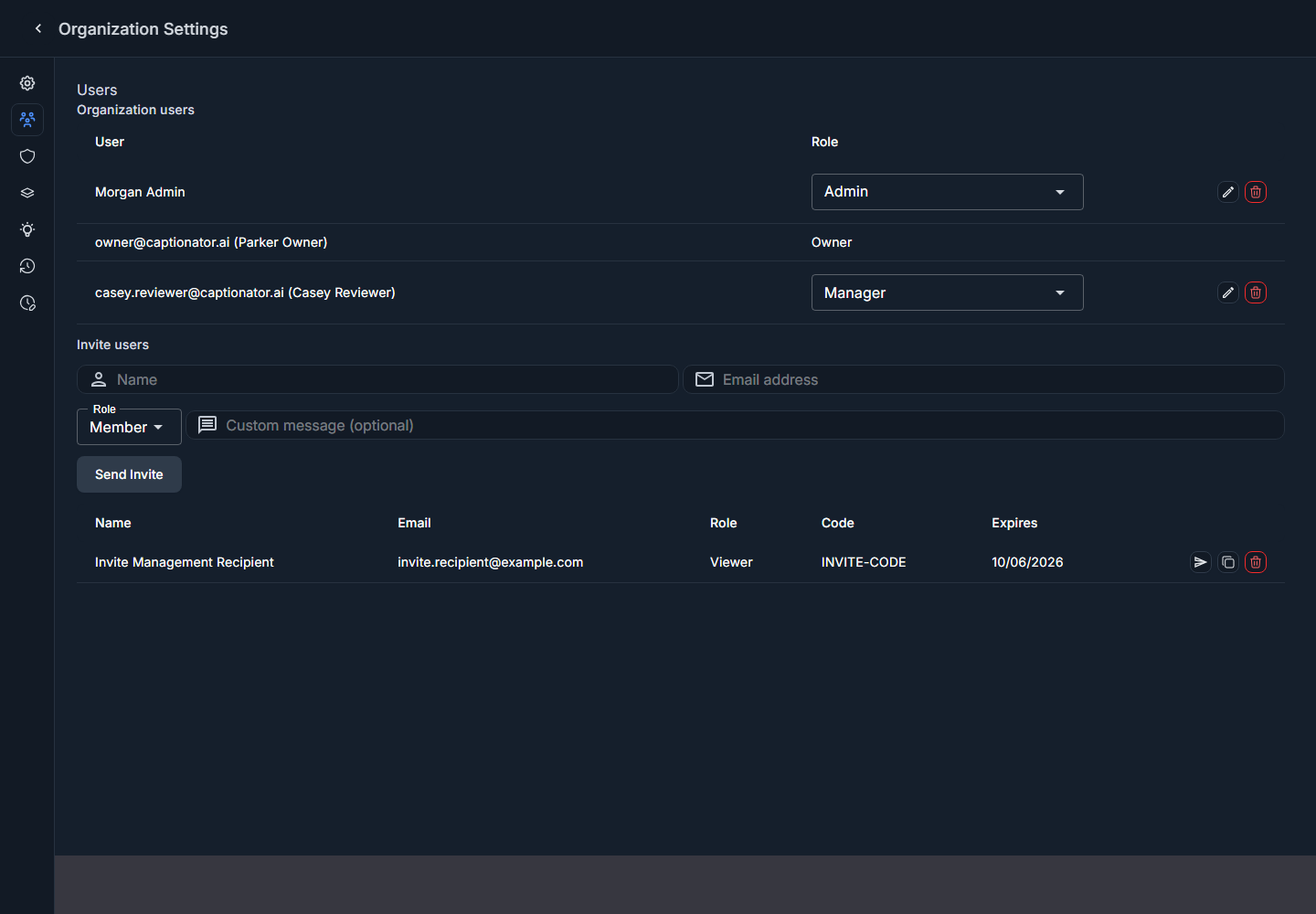
Screenshot: pending invite row with resend, copy, and cancel actions.
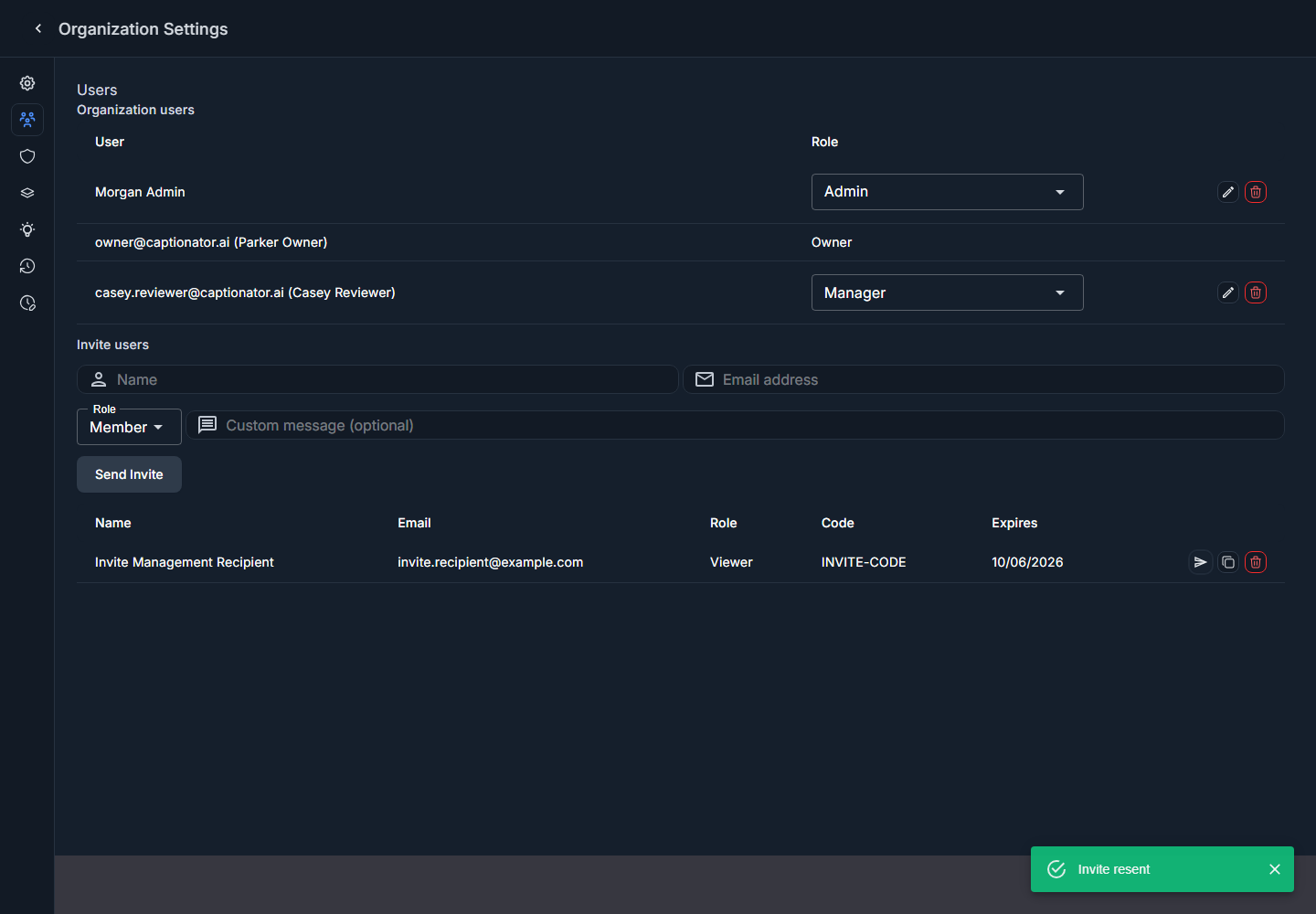
Screenshot: resend action confirmation.
Cancel An Invite
Use Cancel invite when the invite was sent to the wrong person, the person no longer needs access, or you want to replace the invite with a different role.
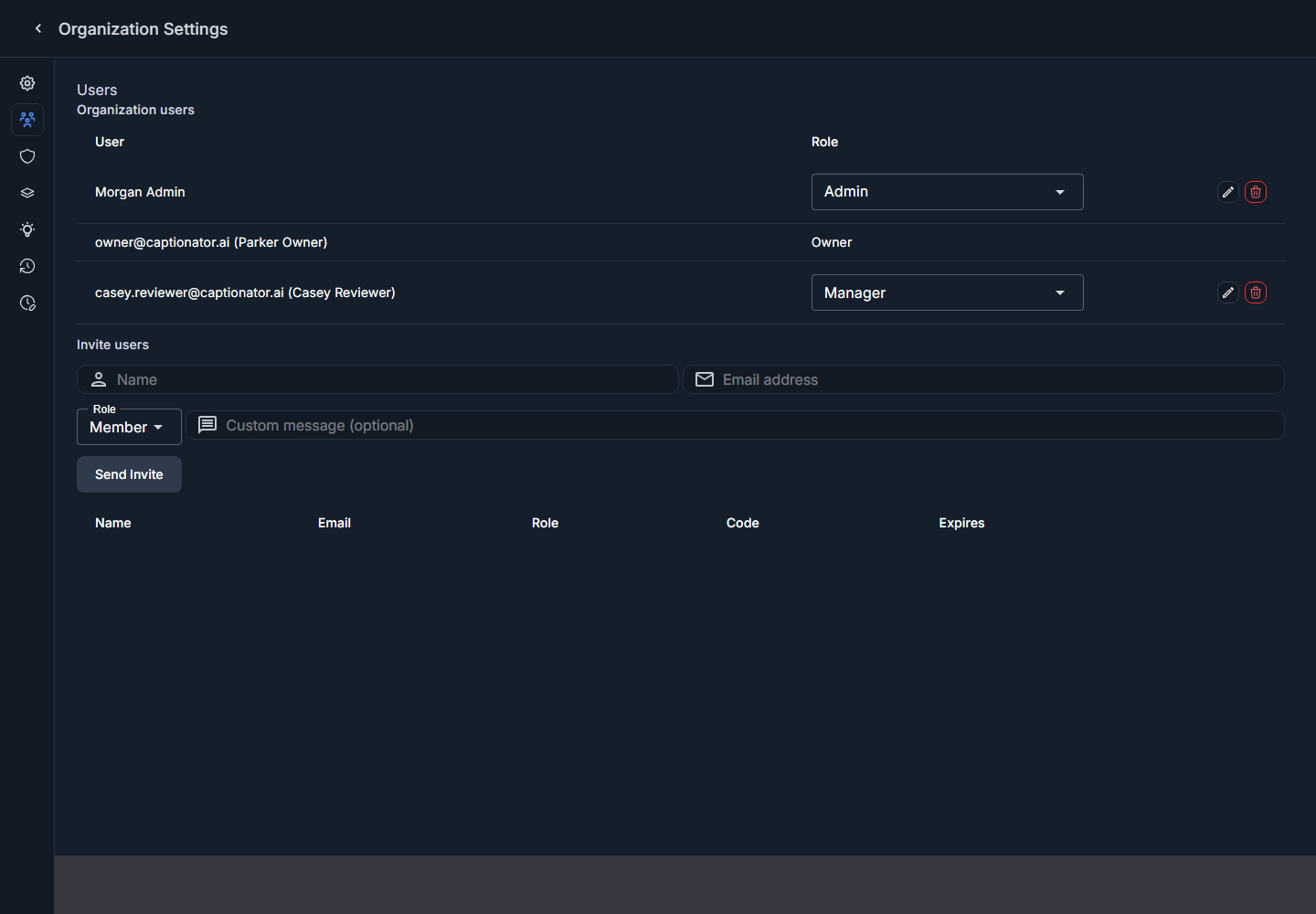
Screenshot: pending invite removed after cancellation.
After cancellation, create a new invite if the recipient still needs access.
Troubleshooting
The Recipient Did Not Get The Email
Ask the recipient to check spam, junk, promotions, and filtered inbox folders. In Gmail, the invitation may appear under the Promotions tab instead of the primary inbox. Then use Resend invite. If email is still delayed, use Copy invite link or copy the Code column and send it through another channel.
The Invite Link Does Not Open
Copy the full link from the pending invite row and send it again. If the link is still blocked, send the Code column value and ask the recipient to use the accept-invite code page.
The Code Does Not Work
Confirm the code was copied exactly. Invite codes are short uppercase letters and numbers. If the invite is older than 10 days, create a new invite.
The Recipient Accepted But Cannot See A Library
The invite adds the user to the organization with the selected role. If the organization uses Granular access, the user may still need access to a specific department or library. Review the Security tab and grant the needed scope.
The Copy Link Button Does Not Copy
Some browsers or privacy settings block clipboard access. Captionator shows the invite link in the on-screen message when automatic copying fails, so you can select and copy the link manually.
The Invite Was Sent With The Wrong Role
Cancel the pending invite and create a new invite with the correct role. If the recipient already accepted, edit the user's role from the Organization users table if you have permission to manage roles.
Security Practices
- Invite only people who should belong to the organization.
- Treat invite links and invite codes as access-bearing credentials until they are accepted, expired, or canceled.
- Share invite links and codes only through trusted channels.
- Cancel an invite immediately if the link or code was sent to the wrong person.
- Use Viewer for read-only reviewers and clients.
- Avoid Admin unless the person is trusted to help manage the organization.
- Use Granular access and resource grants for contractors, clients, or sensitive departments and libraries.
- Cancel pending invites that are no longer needed.
- Resend instead of creating duplicate invites when the original invite is still correct.
- Review organization users after an invite is accepted.