Purpose
The Collaboration screen is the workspace overview for creative review work. It brings together assigned media, quick actions, recent activity, mentions, and team workload in one place.
Use this guide when you need to:
- Check what is assigned to you.
- Open a media item that needs review.
- Find recent comments or workflow changes.
- Respond to a mention.
- Review teammate workload.
- Claim unassigned work.
- Open the activity timeline.
- Start or continue team chat.
- Update workflow statuses in bulk.
Open The Collaboration Screen
- Open the app.
- Select Collaboration in the left navigation.
Collaboration Layout
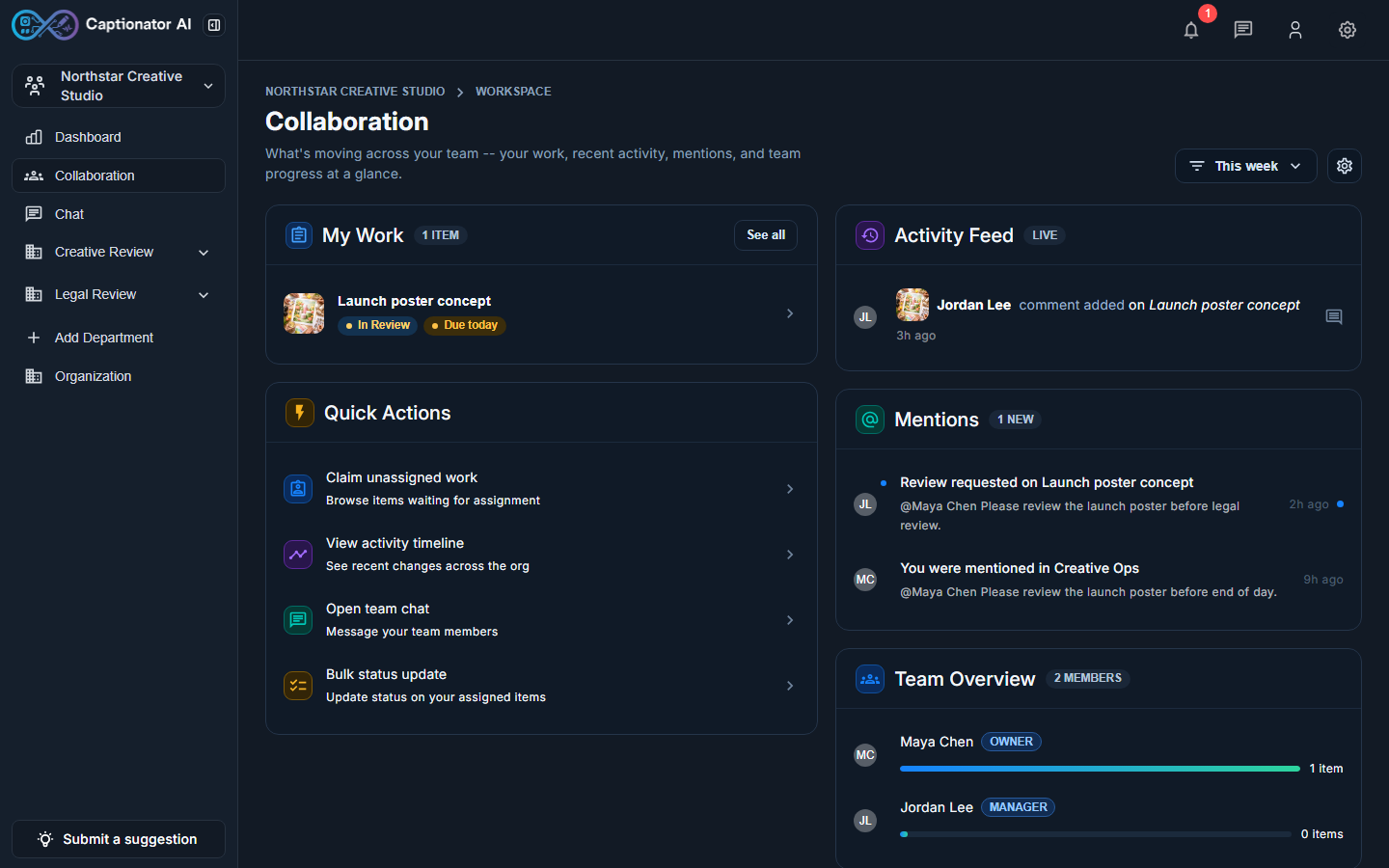
The Collaboration screen is split into two working columns.
The left column is action-focused:
- My Work shows media assigned to you.
- Quick Actions opens common collaboration tasks.
The right column is awareness-focused:
- Activity Feed shows recent team activity.
- Mentions shows notifications that need your attention.
- Team Overview shows workload by teammate.
The top toolbar includes the selected period, such as This week, and a settings button for Collaboration preferences.
My Work
My Work shows the media items assigned to you.
Each item can show:
- A media thumbnail.
- The media title.
- The current workflow status.
- The due-date state.
Select a row to open that media item in its library. Captionator deep-links to the library and opens the media editor for the selected item.
Use See all when you want to leave the Collaboration screen and review more assigned work in context.
Quick Actions
The Quick Actions panel gives you shortcuts for common collaboration work.
Visible actions include:
- Claim unassigned work: opens items waiting for someone to claim them.
- View activity timeline: opens the full activity timeline page.
- Open team chat: opens the team chat area.
- Bulk status update: opens an assigned-work dialog for updating workflow status.
These actions are designed for daily use. If you are checking Collaboration at the start of the day, this panel is usually the fastest way to jump into the right work queue.
Activity Feed
The Activity Feed shows recent collaboration events, such as comments or workflow updates.
Each activity row includes:
- The actor.
- The action, such as
comment added. - The related media title.
- The relative time.
- A media thumbnail or icon when available.
Select an activity row to open the referenced media item. The row should not send you to a generic library view; it should open the exact media item that the activity references.
Mentions
The Mentions panel shows notifications where someone called your attention to a media item or chat thread.
Media mentions open the related media item. Chat mentions open the relevant chat channel.
Use mentions as your "needs my attention" queue. If the badge shows new items, review this panel before scanning the longer activity timeline.
Team Overview
The Team Overview panel shows team members and their current assigned work count.
Each teammate row can show:
- Avatar initials.
- Display name or handle.
- Organization role.
- Workload count.
- A workload bar.
Select a teammate to open workload details.
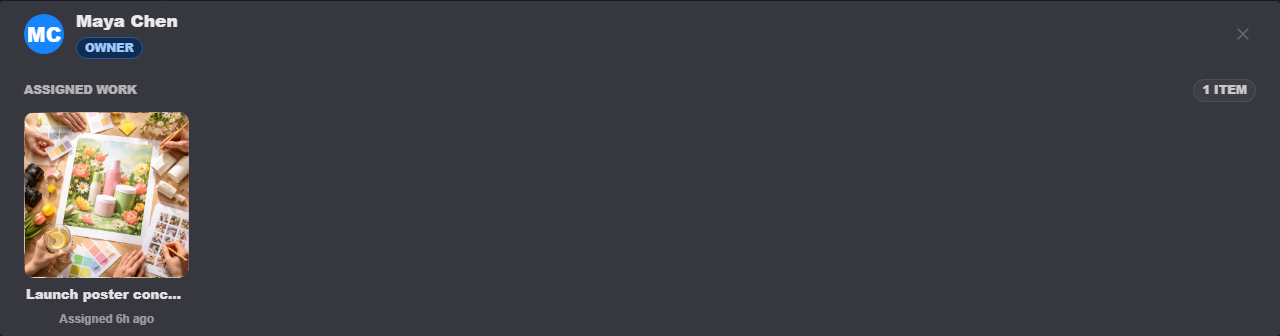
The workload dialog uses a tile layout so it can scale when a teammate has many assigned items. Select a tile to open the media item.
Collaboration Settings
Select the settings button in the Collaboration toolbar to open Collaboration preferences.
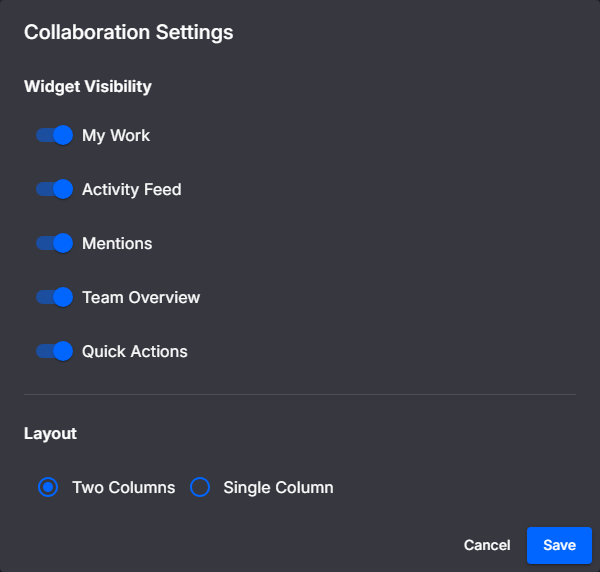
Use this dialog to adjust how the screen summarizes collaboration work. The available options may change as the product grows, but the settings button is the place to look for Collaboration display preferences.
Activity Timeline
Select View activity timeline from Quick Actions to open the full activity page.
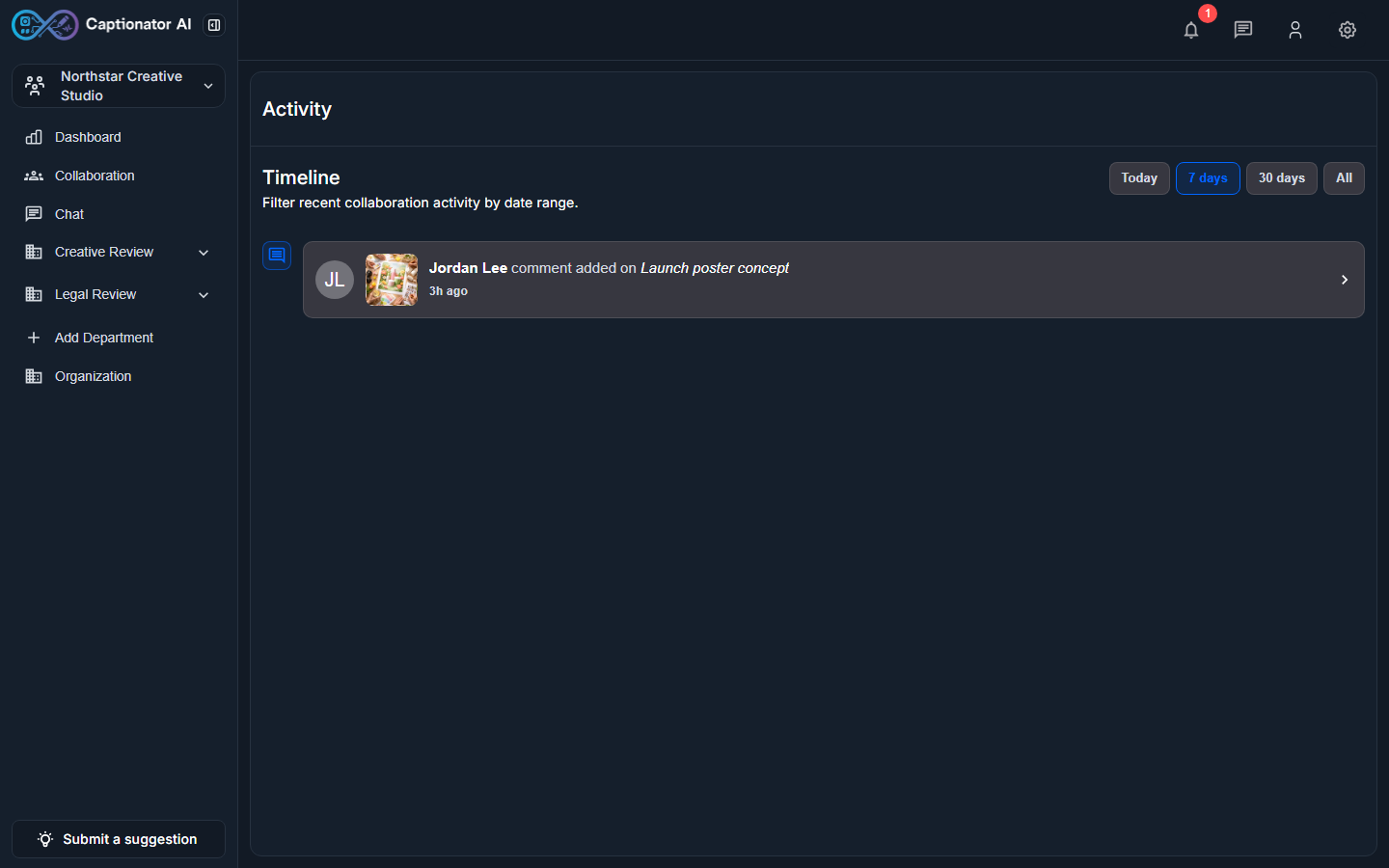
The timeline page shows activity in a rail-and-card layout. Use the date range buttons to filter what you see:
- Today
- 7 days
- 30 days
- All
The selected range is highlighted. Select an activity card to open the referenced media item.
Use the timeline when the activity feed is too small for the question you are asking, such as "what changed this week?" or "who commented on this item recently?"
Team Chat
Select Open team chat from Quick Actions to open chat.
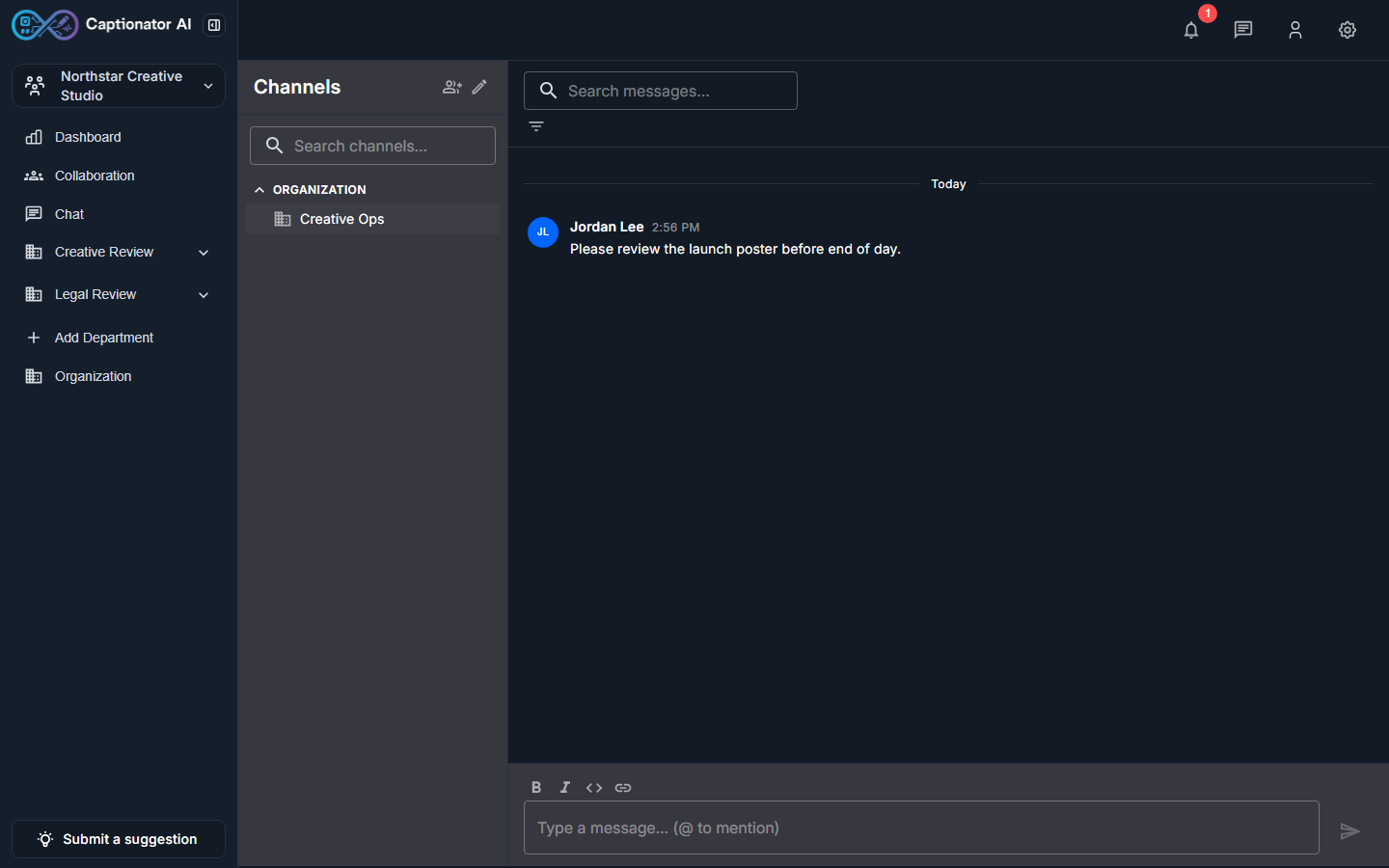
The chat page shows channels on the left and messages on the right. Select a channel to read the thread. Chat mention notifications should open the relevant channel directly.
Use chat for short team coordination. Use media comments when the conversation needs to stay attached to a specific asset.
Bulk Status Update
Select Bulk status update from Quick Actions to update the workflow status of assigned items.

Each row shows:
- A media thumbnail.
- The media title.
- The current workflow status.
- A Target status selector.
Choose the target status for each item you want to change. Long titles are constrained in the row so they do not push the controls out of view.
If a status is not available, check the workflow transitions for that library. The workflow may not allow that move.
Claim Unassigned Work
Select Claim unassigned work from Quick Actions to see media waiting for an assignee.
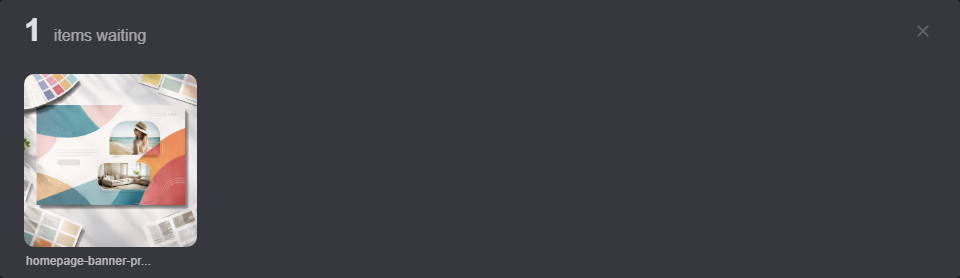
The dialog shows the count of unassigned items and a tile for each item. Select the claim action when you want to take ownership of an item.
Use this when a team queue has work that nobody has picked up yet.
Common Questions
Why did a mention open chat instead of a media item?
Mentions can point to different collaboration surfaces. A media mention opens the media item. A chat mention opens the chat channel where you were mentioned.
Why did Bulk Status Update not show the status I expected?
Bulk status choices follow the workflow attached to the item's library. If the target move is not listed, the workflow may not define that transition.
Why is my teammate's workload count different from the library count?
Team Overview counts assigned work for that person in the active collaboration context. Library totals can include unassigned items, items assigned to other people, or items outside the selected period.
When should I use Activity Feed versus Activity Timeline?
Use Activity Feed for the latest Collaboration changes. Use Activity Timeline when you need a date range or a fuller history.
Next Steps
Use Collaboration at the beginning of a review session to decide where to work first. Start with Mentions for direct requests, check My Work for items assigned to you, then use Quick Actions when you need the full timeline, team chat, or bulk status tools.